Encountering the dreaded missing game executable Steam error can instantly halt your gaming session, a particularly frustrating issue for the average US gamer balancing work and life. This navigational and informational guide provides comprehensive solutions to troubleshoot and fix this common Steam problem, ensuring you can quickly get back to enjoying your favorite titles. Whether it's a verification glitch, an overzealous antivirus, or a corrupted file, understanding the root cause is crucial. We will navigate through step-by-step fixes, from basic file integrity checks to advanced system adjustments, all designed to optimize your Steam experience. Our goal is to empower you with the knowledge to resolve this error efficiently, minimizing downtime and maximizing your valuable gaming moments. Dive in to discover practical tips and tricks that will keep your games running smoothly.
Why is my Steam game executable missing?
The Steam game executable might be missing for several reasons, including corrupted game files due to an incomplete download or update, an aggressive antivirus program mistakenly quarantining or deleting the executable, or a rare Steam client bug. Sometimes, a hard drive issue or system crash during file operations can also lead to the executable's absence.
How to fix Steam missing executable error quickly?
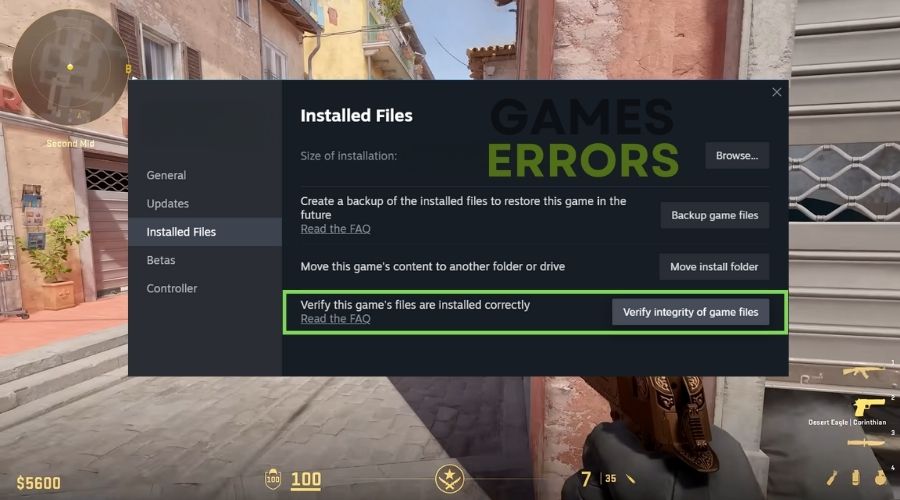
To quickly fix the Steam missing executable error, start by verifying the integrity of game files. Right-click the game in your Steam Library, go to Properties, then Installed Files, and select "Verify integrity of game files..." This often redownloads the missing executable automatically. If that fails, check your antivirus quarantine.
What causes Steam game files to disappear?
Steam game files can disappear or become inaccessible due to a few common culprits. The most frequent are an overzealous antivirus program mistakenly deleting or quarantining the game's executable, corrupted downloads or updates, hard drive errors, or even a system crash during file write operations. Less commonly, a Steam client bug can also cause this.
Is it safe to disable antivirus for Steam games?
It is generally not recommended to permanently disable your antivirus for Steam games as it leaves your system vulnerable. However, temporarily disabling it for a few minutes to *test* if it's the cause of a missing executable error is acceptable. If it resolves the issue, immediately re-enable your antivirus and add the Steam and game folders to its exclusion list instead.
Can I recover a missing game executable without reinstalling?
Yes, you can often recover a missing game executable without a full reinstallation. The primary method is to verify the integrity of game files through Steam, which will redownload any missing executables. If your antivirus quarantined it, you might be able to restore it from the quarantine folder. A full game reinstallation is usually a last resort.
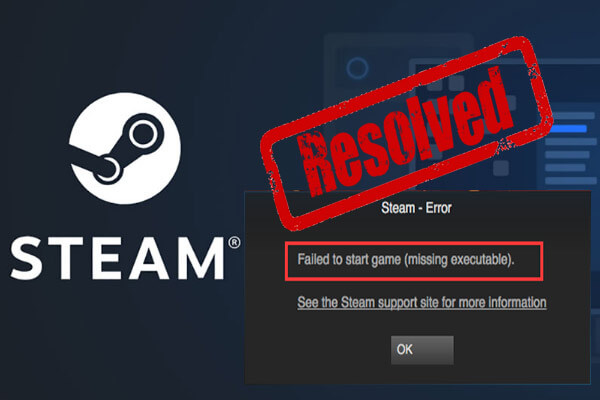
Why does Steam say "Failed to start game (missing executable)" even after verifying files?
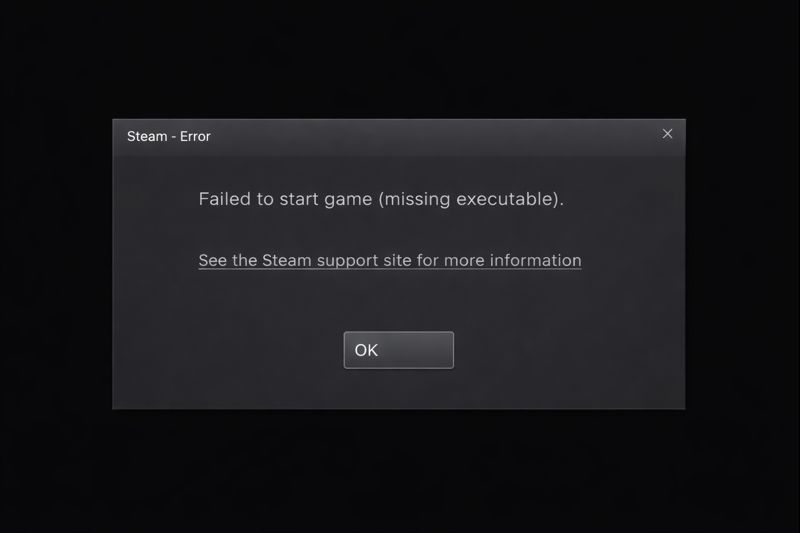
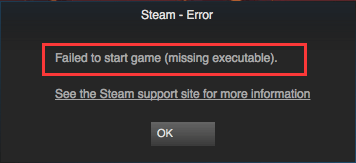
If Steam still reports "Failed to start game (missing executable)" after verifying files, it's likely that another factor is preventing the game from launching. This could be an antivirus or firewall still blocking the executable despite verification, outdated graphics drivers, a corrupted Windows system file required by the game, or even a permission issue preventing the game from running as administrator. Further troubleshooting like checking security software exclusions, updating system components, and running Steam as admin are necessary.
What are the common antivirus programs known to interfere with Steam game executables?
Many antivirus programs, including popular ones like Avast, AVG, Norton, McAfee, and Windows Defender, have been known to occasionally interfere with Steam game executables. This interference isn't malicious but rather a false positive where the security software mistakenly flags a legitimate game file as a threat. Users often resolve this by adding Steam's installation folder and individual game folders to their antivirus exclusion lists, preventing future conflicts.
There's nothing quite like settling down after a long day, ready to unwind with your favorite Steam game, only to be met with a frustrating error message: "Missing Game Executable Steam." It's a common pain point for many US gamers, especially those juggling jobs, families, and limited free time. You just want to relax, build some skills, or socialize with friends online, not spend precious minutes troubleshooting technical issues. With 87% of US gamers regularly engaging with their favorite titles, often for 10+ hours a week, unexpected errors like this are a major disruptor to valuable leisure. The good news? You're not alone, and this guide is here to help you conquer the "missing game executable Steam" error with practical, easy-to-follow solutions. We'll dive deep into why this happens and how to fix it, ensuring your gaming time is spent playing, not pulling your hair out.
This article is designed for the modern gamer – someone who values efficiency, effective solutions, and getting back to the fun without unnecessary hype. We understand you want straightforward answers that address common setup issues and performance problems. Let's get your games launching smoothly again so you can enjoy the escapism, challenge, or social connection that gaming offers. From quick fixes to deeper dives, we've got you covered. No more staring at error messages; it's time to reclaim your gaming experience.
What Does "Missing Game Executable Steam" Actually Mean?
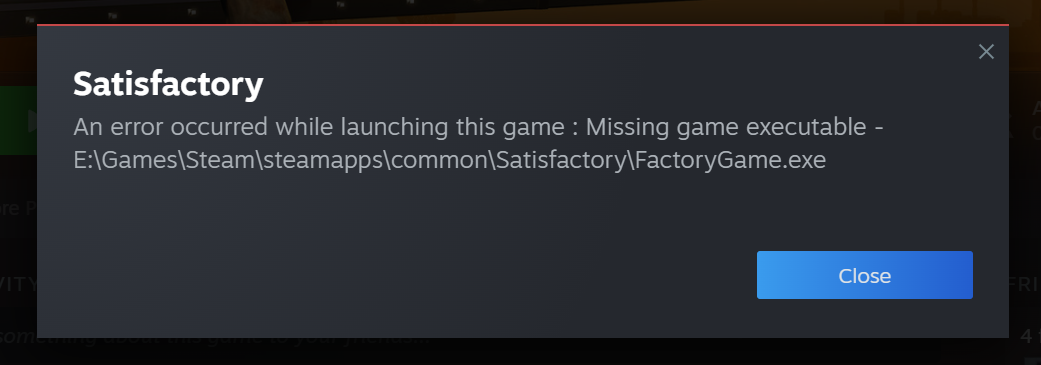
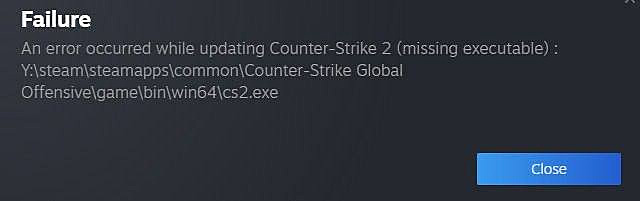
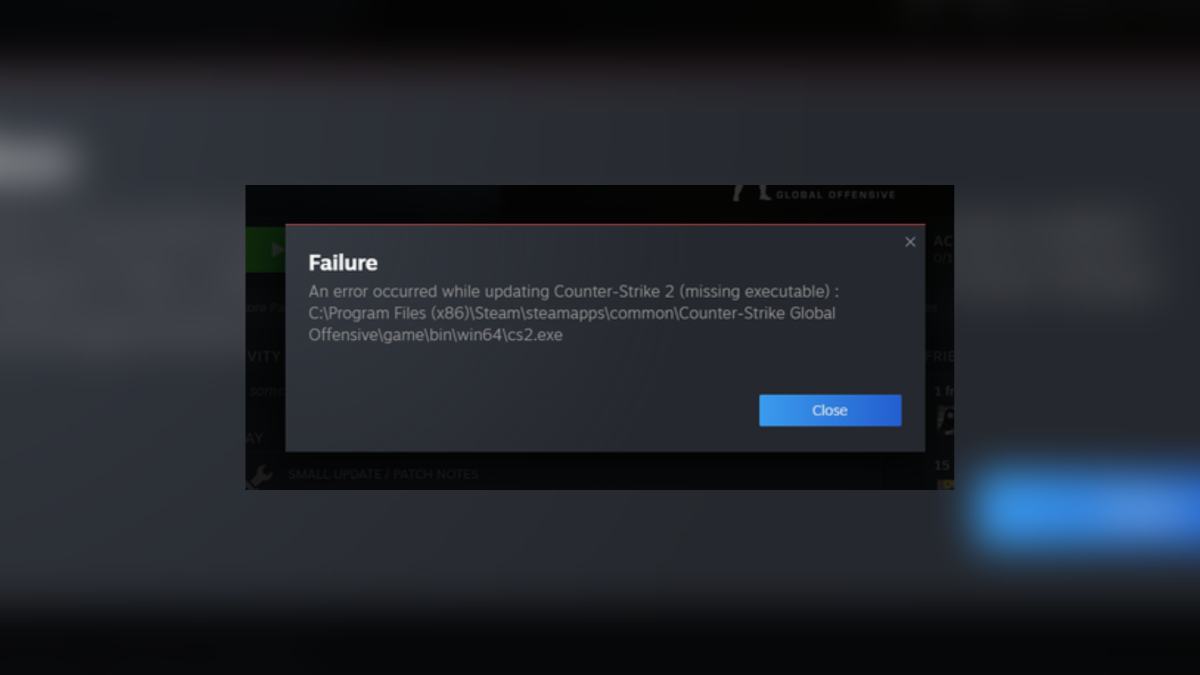
When Steam reports a "missing game executable," it means the main file responsible for launching the game (.exe file) cannot be found at its expected location. This critical file is essential for the game to start. It's like trying to start your car without an engine. Without the executable, Steam has no instructions on how to run the game, leading to the error. This issue can stem from various sources, including corrupted downloads, aggressive antivirus software, or even a simple Steam client glitch.
Understanding this error is the first step towards a fix. It's rarely a sign that your game has completely vanished; more often, it's a misplacement or a blocking issue. For gamers who prioritize performance optimization and value for money, resolving such core issues efficiently is key to getting the most out of their purchases and limited gaming time.
How Do I Verify Game Files on Steam to Fix This Error?
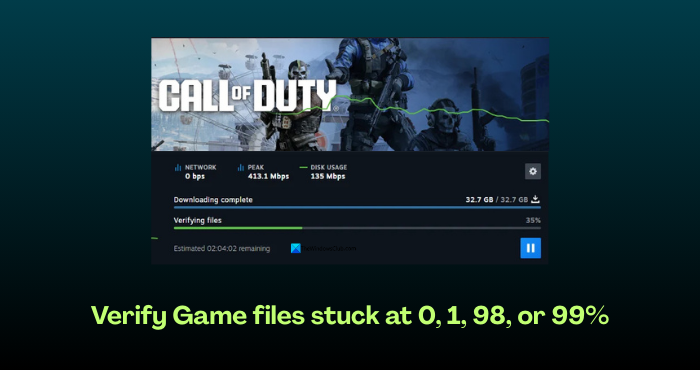
Verifying game files is often the first and most effective solution for a missing game executable on Steam. This process scans your game's installation directory, compares it against the Steam servers, and redownloads any missing or corrupted files. It's a built-in repair tool that can fix many common issues without a full reinstallation.
Here are the steps:
- Open your Steam client and navigate to your "Library."
- Locate the game that is giving you the "missing executable" error.
- Right-click on the game title and select "Properties."
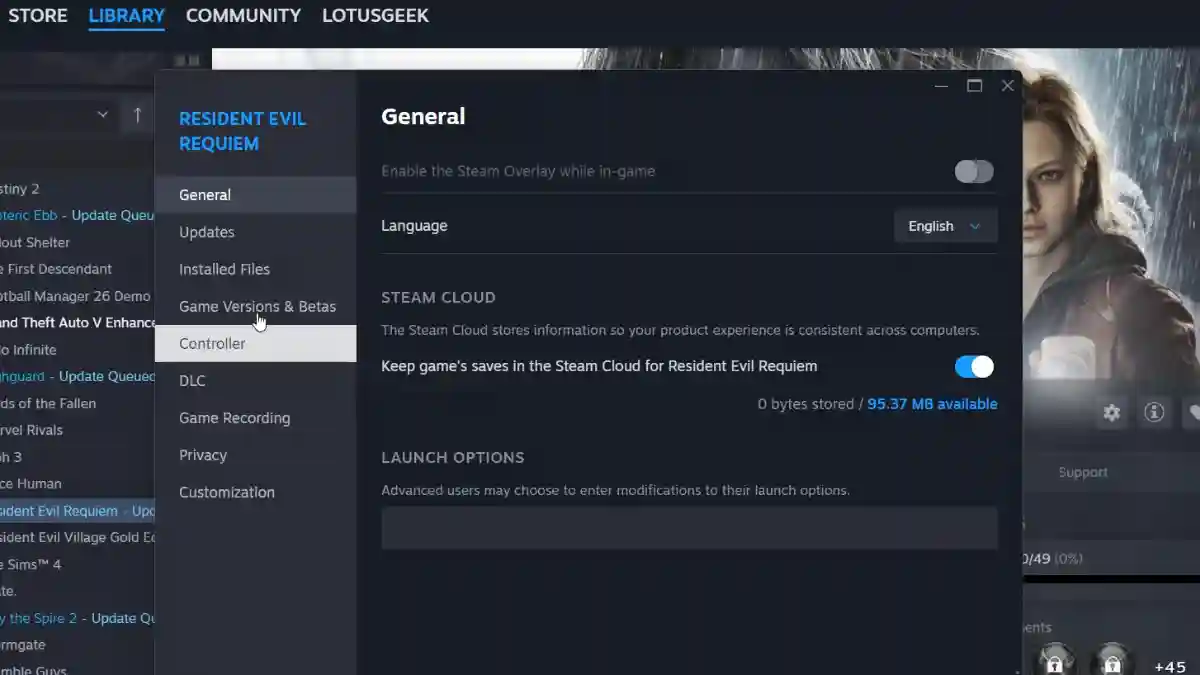
- In the Properties window, click on the "Installed Files" tab (formerly "Local Files").
- Click the button labeled "Verify integrity of game files..."
- Steam will then begin the verification process. This can take several minutes, depending on the game's size and your system speed.
- Once completed, Steam will inform you if any files were missing or corrupted and subsequently redownload them. Try launching the game again.
This method resolves a significant percentage of these errors, making it the go-to first step for any gamer facing this specific problem.
Can Antivirus Software or Firewall Settings Cause a Missing Executable Error?
Absolutely, an overzealous antivirus program or firewall is a very common culprit behind a missing game executable on Steam. Modern security software is designed to protect your PC from malicious files, and sometimes, it can mistakenly flag legitimate game executables as threats, either quarantining them or deleting them outright. This is especially true for newly installed games or updates, as antivirus definitions might not yet recognize them as safe.
To check if your security software is interfering:
- Check your Antivirus Quarantine/History: Open your antivirus software and look for a "Quarantine," "Virus Chest," or "History" section. See if your game's executable file (e.g., game.exe) is listed. If it is, you can often restore it and add it to an exclusion list.
- Add Exclusions: Add the entire Steam installation folder (e.g., C:\Program Files (x86)\Steam) and the specific game folder to your antivirus and Windows Defender firewall exclusion lists. This tells your security software to ignore these folders during scans.
- Temporarily Disable: As a last resort for testing, you can temporarily disable your antivirus and firewall, then try launching the game. If the game launches, you've found your culprit and should proceed with adding exclusions. Remember to re-enable your security software immediately after testing.
For gamers balancing work and family, the last thing they need is a security suite disrupting their precious relaxation time, so proactive exclusion setup can save headaches.
What If Verifying Game Files and Checking Antivirus Doesn't Work?
If the initial steps of verifying game files and checking your antivirus haven't solved the "missing game executable Steam" error, don't despair. There are several other troubleshooting steps you can take to pinpoint and resolve the issue. These methods address less common but equally frustrating causes.
- Run Steam and the Game as Administrator: Sometimes, games require elevated permissions to run correctly, especially when writing temporary files or accessing system resources. Right-click on your Steam shortcut and select "Run as administrator." Do the same for the game's executable directly from its installation folder (if you can locate it).
- Update Graphics Drivers and Operating System: Outdated drivers or an out-of-date Windows version can sometimes lead to unexpected game launch issues. Ensure your graphics card drivers (NVIDIA, AMD, Intel) are updated to the latest version. Also, check for any pending Windows updates and install them. A stable, up-to-date system is crucial for smooth gaming, impacting performance optimization.
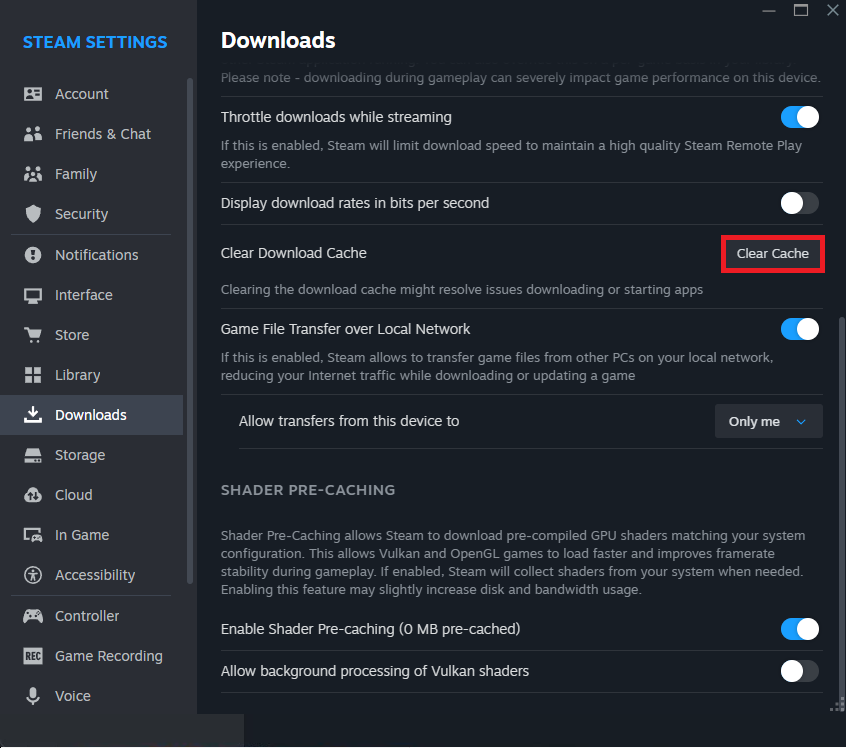
- Clear Steam Download Cache: Corrupted download cache files can sometimes interfere with game installations and launches. Go to Steam > Settings > Downloads > Clear Download Cache. You'll need to log back into Steam afterward.
- Perform a Clean Reinstallation of the Game: If all else fails, a complete reinstallation might be necessary. Uninstall the game via Steam, then manually delete any remaining game files in the SteamApps/common folder to ensure a clean slate. Then, reinstall the game.
These deeper dives into your system can often uncover the hidden reasons behind persistent executable errors, bringing you closer to uninterrupted gameplay.
Should I Reinstall the Entire Game When Facing This Error?
Reinstalling the entire game should be considered a more drastic measure, typically reserved for when simpler troubleshooting steps like file verification and antivirus checks have failed. While it's often effective, it can be time-consuming, especially for large modern titles that consume hundreds of gigabytes. For busy adults who game, a full reinstallation means significant downtime, which is why we recommend trying quicker fixes first.
However, if you've tried everything else – verifying files, adjusting antivirus, running as administrator, updating drivers, and clearing the download cache – and the problem persists, a clean reinstallation is often the definitive solution. This ensures all game files are fresh and correctly placed, eliminating any lingering corruption or misconfiguration. Before you reinstall, make sure to completely uninstall the game through Steam, then manually check and delete any residual folders in your Steam installation directory (Steam/steamapps/common/) to prevent old, problematic files from causing new issues.
How Can I Prevent the Missing Game Executable Error in the Future?
Preventing the "missing game executable Steam" error largely comes down to good system hygiene and proactive management of your gaming environment. While not every issue can be avoided, these practices can significantly reduce your chances of encountering this frustrating problem.
- Regularly Verify Game Files: Make it a habit to verify game files after major updates or if you notice any strange behavior. It's a quick check that can catch minor corruptions before they escalate.
- Maintain Antivirus Exclusions: Always ensure your Steam client and game installation folders are properly excluded from your antivirus and firewall scans. Recheck these settings after antivirus updates or new game installations.
- Keep Drivers and OS Updated: Regularly update your graphics drivers, chipset drivers, and operating system. These updates often include critical bug fixes and compatibility improvements that prevent unforeseen issues.
- Monitor Disk Health: Ensure your hard drives or SSDs are in good health. Disk errors can lead to corrupted files. Tools like Windows' built-in Disk Error Checking can help identify and fix potential problems.
- Avoid Force Quitting Games: Whenever possible, exit games gracefully. Force quitting can sometimes lead to file corruption, though modern systems are generally robust.
- Sufficient Disk Space: Always ensure you have ample free disk space. Running low on storage can lead to incomplete downloads or installation issues.
By adopting these preventative measures, you can create a more stable and reliable gaming setup, allowing you to focus on the fun rather than the fixes. For gamers who prioritize staying current without hype, these simple steps offer genuine value in maintaining a smooth experience.
Why Does Steam Sometimes Fail to Launch Even With the Executable Present?
Even if the game executable is physically present, Steam might still struggle to launch your game, displaying a similar error or simply failing to start. This often points to issues beyond a missing file, delving into software conflicts or underlying system problems. For example, some games require specific versions of DirectX, Visual C++ Redistributables, or other runtime libraries that might be corrupted or missing. Steam usually attempts to install these during the initial game setup, but sometimes these installations fail or become corrupted over time. Additionally, incompatible display settings, overlay programs (like Discord overlay or GeForce Experience), or even a struggling internet connection for online DRM checks can prevent a game from launching properly. Checking game-specific forums for known issues or required prerequisites can be very helpful here.
Are There Any Third-Party Tools That Can Help Fix Steam Errors?
While Steam has robust built-in tools like 'Verify Integrity of Game Files', relying on third-party tools for direct fixes to the 'missing executable' error is generally not recommended and can sometimes introduce more problems. Most reputable solutions involve Steam's own client or standard Windows troubleshooting. However, some tools can assist in *diagnosing* underlying issues:
- Driver Update Utilities: While manual driver updates are best, some reputable tools like Display Driver Uninstaller (DDU) can help with clean driver uninstalls before reinstalling the latest versions, which can resolve graphics-related launch issues.
- Disk Health Checkers: Utilities like CrystalDiskInfo can monitor your hard drive's health, alerting you to potential failures that might cause file corruption.
- System Monitoring Tools: Programs like HWMonitor can help identify if your hardware is overheating or struggling, which can sometimes manifest as game instability or launch failures, though rarely a 'missing executable' specifically.
Always exercise caution with third-party software, downloading only from official sources to avoid malware. For the 'missing executable' specifically, stick to Steam's official methods first.
Can Corrupted Cloud Saves Cause Game Launch Issues on Steam?
Yes, while less common for a direct "missing game executable" error, corrupted cloud saves can absolutely interfere with game launches on Steam, especially if the game attempts to sync these saves immediately upon startup. If a game's executable is trying to load a critical game state from a corrupted cloud file, it could crash or refuse to launch, sometimes presenting generic errors. To troubleshoot this, you can try disabling Steam Cloud synchronization for the specific game. Go to the game's Properties in Steam, navigate to the "General" tab, and uncheck "Keep games saves in the Steam Cloud for [Game Name]." Then, try launching the game. If it works, you might need to delete local save files (backing them up first!) and let the game create new ones. This helps ensure a clean start without problematic save data affecting the launch process.
We understand that encountering a "missing game executable Steam" error can be a major buzzkill, especially for busy gamers who just want to relax. This guide has walked you through the most common causes and effective solutions, from verifying game files and managing antivirus settings to performing clean reinstalls and maintaining system health. By following these steps, you're not just fixing a problem; you're taking control of your gaming experience, ensuring less downtime and more fun. Remember, a little proactive maintenance goes a long way in keeping your digital adventures smooth and enjoyable. What's your biggest gaming challenge that you'd like to conquer next? Comment below!
FAQ
What is the quickest way to fix a missing game executable in Steam? The quickest fix is usually to verify the integrity of game files through Steam's properties menu. This often redownloads the missing or corrupted executable automatically, resolving the issue efficiently.
Why does my antivirus delete game executables? Antivirus software can sometimes mistakenly identify legitimate game executables as threats due to their behavior or specific code signatures, quarantining or deleting them. Adding your Steam and game folders to the antivirus exclusion list usually prevents this.
Does reinstalling Steam fix game executable issues? Reinstalling the entire Steam client is a last resort and rarely necessary for a single game's missing executable. Focus on game-specific troubleshooting first, like verifying files or reinstalling just the affected game.
How often should I update my graphics drivers? It's recommended to update your graphics drivers every few months, or whenever a major game release or significant driver update is available. Keeping them current ensures optimal performance and compatibility, preventing many game launch issues.
Can a slow internet connection cause a missing executable error? A slow or unstable internet connection during game download or update can lead to incomplete files, which might manifest as a missing executable error. Ensure a stable connection when downloading or updating games.
Is it safe to temporarily disable Windows Defender? Temporarily disabling Windows Defender (or your third-party antivirus) can help diagnose if it's blocking your game. However, re-enable it immediately after testing to maintain system security. Always add proper exclusions instead of permanently disabling it.
Verify game files integrity, check antivirus exclusions, update drivers, reinstall game, Steam client repair, administrator privileges, Windows Defender firewall exceptions, common causes of missing executable.
35



Steam Missing Game Executable Fix YouTube . How To Fix Missing Executable Steam 2024 Quick Solution YouTube . Failed To Start Game Executable Missing Error On Steam . How To Fix Steam Failed To Start Game Missing Executable Full . How To Fix Steam Missing Executable Error Failed To Start Game YouTube


5 Methods To Fix Steam Missing Executable Error MiniTool Partition Wizard Steam Missing Executable 1 . Age Of Empires Insider Support FAQ Age Of Empires World S Edge Studio Steam Missing Executable . How To Solve Failed To Start Game Missing Executable YouTube . Fix Steam Launch Error Failed To Start Game Missing Executable Steam Miss . Steam Community Guide Missing Executable FIX


1 0 Greyduck Net Missing Game Executable . How To Fix Stardew Valley Missing Executable Error 2026 Easy Guide Image 298 . How To Fix Assassin S Creed Black Flag Resynced Not Launching On A PC Verify Fix Assassins Creed . How To Fix Resident Evil Requiem Game Executable Missing Re9 Exe YouTube . Partition Manager Page 223 Of 281 MiniTool Partition Wizard Steam Missing Executable Thumbnail

How To Remove Steam Trade Hold Easily Missing Executable Steam Cs2. Counter Strike 2 Missing Executable Error Fix Verify Game Files Stuck . CS2 Doesn T Start How To Fix Update Error Missing Executable In CS2 Pic 20230927 640x201 6426996689 . Steam Missing File Privileges Here S The Fix Update 06 2026 Steam Missing File Privileges Img . Steam Missing Executable FIX 2025 Game Not Launching FIXED YouTube




How To Fix Resident Evil Requiem Game Executable Missing RE9 Exe Resident Evil Requiem Game Executable Missing RE9.exe .webp. The Best Survival Games On Steam According To Users Cheat Code Central Most Played Games Steam 2026 2048x1167 . Fix Steam Tools Games Not Showing In Library After Restart Steam . Steam March 2026 Client Update Adds Hardware Specs To User Reviews Steam Client Mar 2026 . Missing Executable Steam Error How To Fix Gamelevate Com How To Play 7




How Fix Steam Game Icons Missing 2026 Step By Step YouTube . CS2 Error Steam Missing Executable Fix Pro Game Guides Counter Strike 2 Steam Missing Executable Error . How To Fix Steam Missing Executable How To Fix Steam Missing Executable . How To Fix Steam Game Icon Missing Tutorial YouTube . Discover Steam S Best New Game Releases For January 2026 LevelUpTalk January 2026 Steam Game Releases 02 16 2026 9d0914d3 B7f8 4115 A7d6


CS2 Missing Executable How To Fix CS2 Exe Error Easily Counter Strike 2 Verify Game Files Steam . How To Fix Steam Missing Executable YouTube . Missing Executable Steam Error How To Fix Gamelevate Com Mental Acuity 1 1160x870 . If Anyone Is Having Issue With The Game On Steam Regarding Missing . Fix Subnautica 2 Crashing Fatal Errors Not Loading Freezing Or Subnautica 2 Clear Steam Download Cache 1