Unlock enhanced precision and movement in Roblox with Shift Lock. This essential guide navigates you through activating and mastering Shift Lock, a crucial feature for competitive gameplay and smoother exploration. For US gamers balancing work and play, optimizing your Roblox experience means making every moment count. Learn how this simple toggle can dramatically improve your performance, from intricate parkour maps to fast-paced combat. We'll cover everything from initial setup on PC and mobile to troubleshooting common issues, ensuring you spend less time frustrated and more time enjoying Roblox. Discover why top players utilize Shift Lock and how you can too, making your gaming sessions more efficient and fun. Stay current with this vital skill, essential for anyone serious about elevating their Roblox journey today.
What is Shift Lock in Roblox and why is it important?
Shift Lock is a Roblox feature that fixes your camera behind your character, preventing it from rotating independently. This provides more precise movement control, especially crucial in games requiring accurate aiming, parkour, or combat. For gamers seeking an edge, it significantly enhances precision and reaction time.
How do I enable Shift Lock on PC in Roblox?
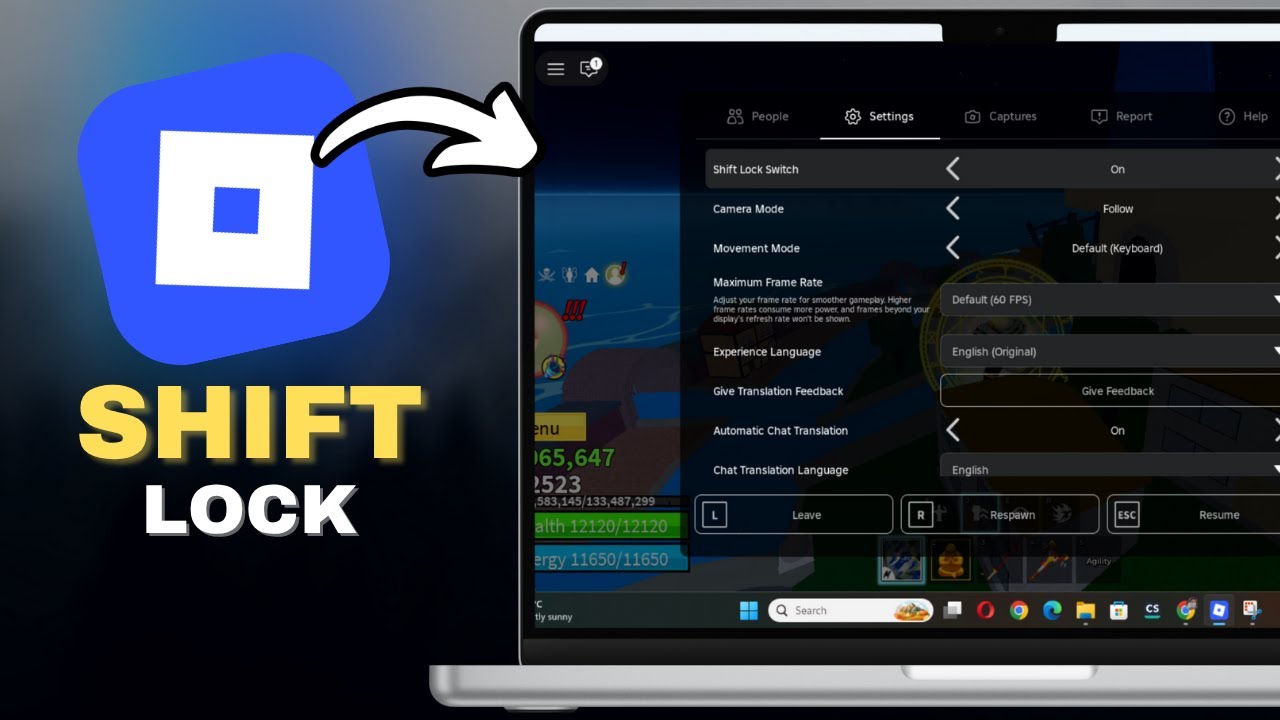
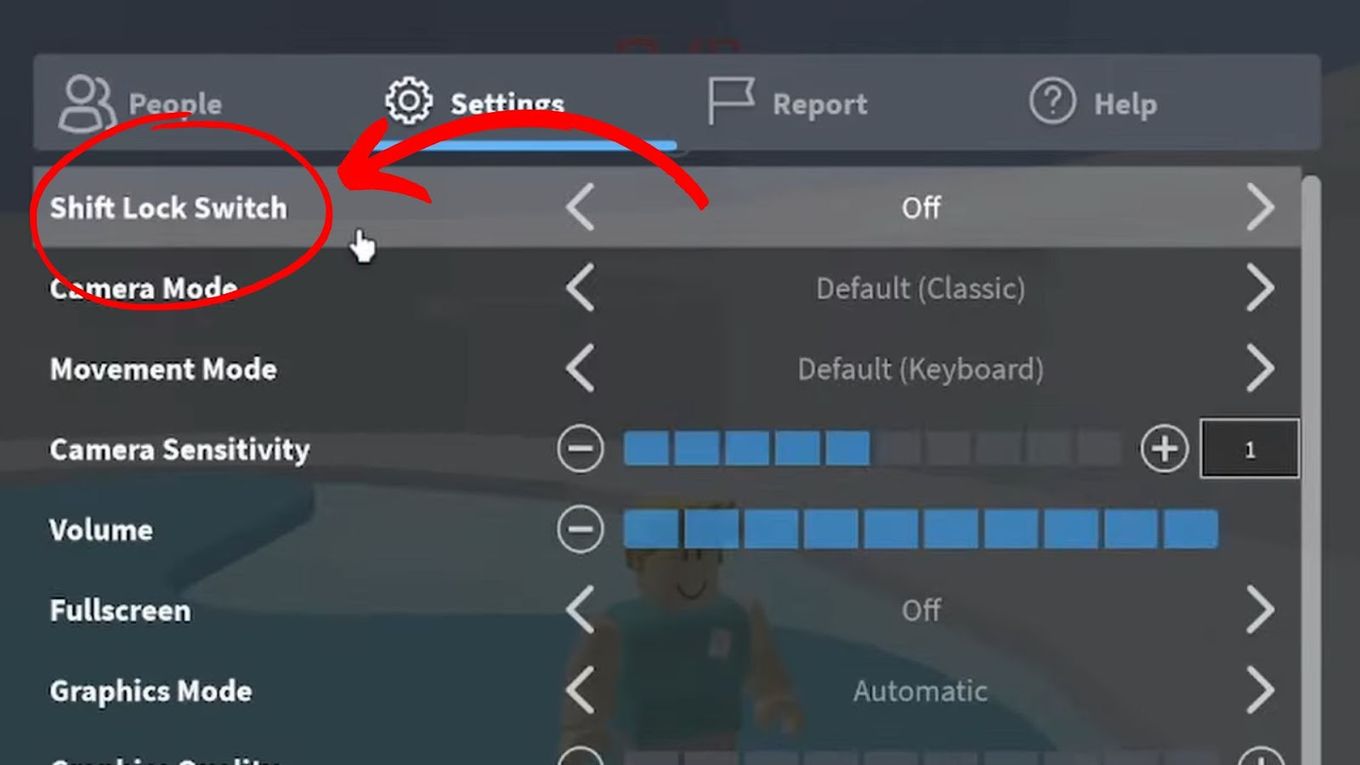
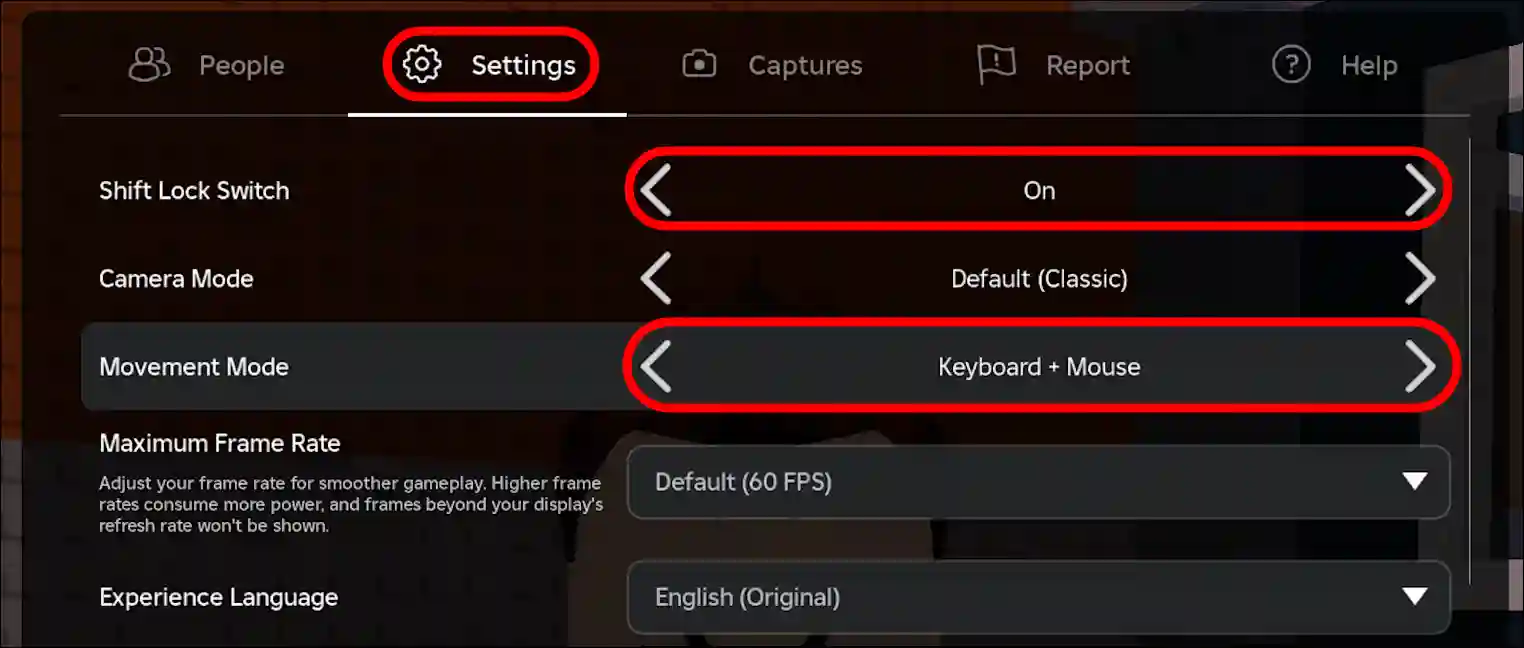
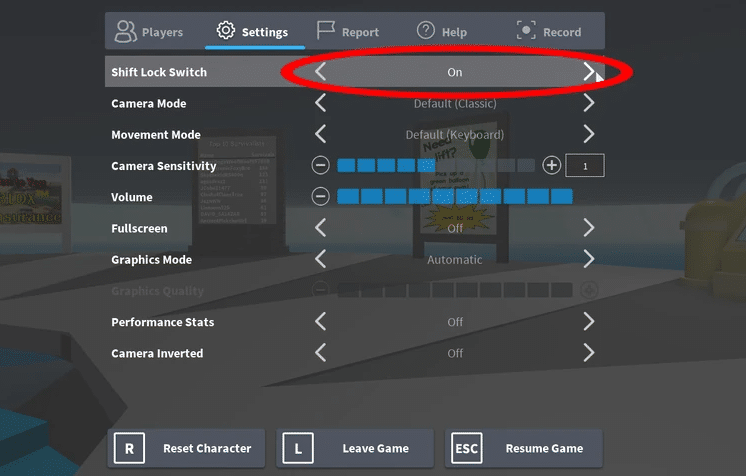
To enable Shift Lock on your PC, first, open Roblox and join any game. Press the 'Esc' key to bring up the in-game menu. Navigate to the 'Settings' tab. Look for the 'Shift Lock Switch' option and toggle it to 'On'. Once enabled, you can activate it in-game by pressing the 'Shift' key on your keyboard.
Can I use Shift Lock on Roblox mobile devices?
Yes, Shift Lock functionality is available on mobile devices, though its activation differs slightly. While there isn't a direct 'Shift' key, some games offer an on-screen toggle button to replicate the effect. Check game settings or on-screen UI for a dedicated Shift Lock icon or a "Lock Camera" option. The experience may vary by game and device.
Why isn't my Shift Lock working in Roblox? Common troubleshooting.
If Shift Lock isn't working, first ensure it's enabled in your Roblox settings via the 'Esc' menu. Also, verify that the specific game you're playing supports Shift Lock, as not all experiences incorporate it. Check your keyboard for stuck keys or try restarting Roblox. Sometimes, a quick game rejoin or client restart can resolve minor glitches.
Which Roblox games benefit most from Shift Lock?
Shift Lock is highly beneficial in games demanding high precision. This includes first-person shooter (FPS) games like Phantom Forces, combat-focused experiences such as Arsenal, and intricate obbies or parkour games like Tower of Hell. It's also useful in sword fighting games and any scenario where fixed camera control improves navigation or aiming.
What are the advantages of using Shift Lock for experienced Roblox players?
For experienced players, Shift Lock offers unparalleled control, crucial for competitive play. It allows for smoother strafing, more consistent aim, and improved situational awareness by locking the camera to your character's forward movement. This translates to better dodging, more accurate shots, and overall enhanced agility, giving a distinct advantage in fast-paced scenarios.
Are there any disadvantages or alternatives to Shift Lock?
While powerful, a disadvantage is that a fixed camera can limit peripheral vision. Some players might find it disorienting initially. Alternatives include adjusting mouse sensitivity for finer control or utilizing games' specific camera modes. However, for direct movement control, Shift Lock remains the most effective built-in option in Roblox for PC users.
Ever found yourself in a tight spot in Roblox, struggling with your camera, missing that crucial jump, or fumbling an aim in a PvP battle? You're not alone. Many US gamers, who often juggle demanding jobs and family life, understand the frustration of limited playtime being hampered by clunky controls. We game to unwind, connect with friends, and build skills, not to fight with our camera. If you've felt this, then learning how to Shift Lock on Roblox is about to be your game-changer. This isn't just a niche trick; it's a fundamental skill that transforms your gameplay, offering precision and control that can elevate your experience from good to legendary. With nearly 87% of US gamers regularly diving into virtual worlds, many averaging over 10 hours a week, optimizing every minute of play is paramount. Shift Lock helps you do exactly that, ensuring your precious gaming time is spent dominating, exploring, and having pure, unadulterated fun, without the usual control headaches. This comprehensive guide will walk you through everything you need to know about activating and mastering Shift Lock, ensuring you unlock your full potential in Roblox.
What Exactly is Shift Lock in Roblox and Why Every Gamer Should Care?
Shift Lock in Roblox is a game-changing feature that fundamentally alters how your camera interacts with your character. Instead of the camera moving freely or lagging behind, Shift Lock fixes it directly behind your avatar, essentially locking your perspective to your character's forward movement. This means when your character turns, your camera turns with it seamlessly. Why is this important? Because it provides unparalleled precision in movement and aiming. Imagine trying to hit a target while your camera swings wildly; Shift Lock eliminates that instability. For competitive players, or those navigating intricate obbies and combat zones, this fixed perspective is crucial. It minimizes disorientation, allows for more accurate strafing, and ensures your crosshair (or gaze) stays exactly where you need it, making you a much more effective player. It's a key to performance optimization.
How to Enable Shift Lock on Your PC for Roblox: A Step-by-Step Guide
Enabling Shift Lock on your PC is a straightforward process that takes mere seconds but yields immense benefits. It's an easy win for busy gamers looking to enhance their experience. First, launch Roblox and join any game. Once you are in a game, press the 'Esc' key on your keyboard. This action will open the in-game menu, revealing several options. From this menu, navigate to the 'Settings' tab. Within the Settings, you'll find an option labeled 'Shift Lock Switch'. By default, this might be set to 'Off'. Simply click on it to toggle it 'On'. After enabling it in the settings, you can now activate Shift Lock in any compatible game by pressing the 'Shift' key on your keyboard. To disable it temporarily, just press 'Shift' again. This easy setup provides instant control improvement.
Shift Lock on Mobile? Navigating the Feature on Phones and Tablets
While Roblox boasts significant mobile dominance, with many gamers enjoying cross-play on their phones and tablets, the Shift Lock experience differs from PC. Mobile devices lack a physical 'Shift' key, meaning the traditional activation method isn't available. However, many Roblox games, particularly those designed for competitive play or requiring precise movement, incorporate an on-screen Shift Lock button or a 'Lock Camera' toggle within their in-game user interface (UI). If a game supports it, you'll typically find a small icon, often resembling a lock or a camera, that you can tap to toggle the feature. Always check the specific game's settings or on-screen controls. If a game doesn't offer a dedicated mobile Shift Lock button, you might need to adjust your camera sensitivity in the game's settings to compensate for the lack of a fixed perspective, though it won't replicate the full Shift Lock experience.
Troubleshooting Shift Lock: Common Issues and Quick Fixes
Even with a straightforward feature like Shift Lock, sometimes things don't go as planned. If you're wondering, "Why isn't my Shift Lock working?" there are a few common culprits and quick fixes to try. First, double-check that you've enabled the 'Shift Lock Switch' in your Roblox settings via the 'Esc' menu. It's an easy step to overlook. Second, not all Roblox games are designed to utilize Shift Lock. Some older or simpler experiences may not have the feature enabled by their creators. Try joining a popular game known for supporting Shift Lock, like Arsenal or Phantom Forces, to test it. Third, a stuck 'Shift' key on your keyboard could be the problem; test it with other applications. Finally, sometimes the Roblox client itself can glitch. A simple restart of the Roblox application or even your entire PC can often resolve unexpected technical issues, getting you back to smooth, precise gameplay swiftly.
Which Roblox Games Are Best Played with Shift Lock On?
Shift Lock truly shines in specific genres and game types within Roblox, transforming challenging experiences into manageable ones. Gamers who prioritize skill-building and competitive play will find it indispensable. It's an absolute must-have for first-person shooter (FPS) games like Phantom Forces, Arsenal, or Bad Business, where accurate aiming and quick reflexes are critical. In these fast-paced environments, Shift Lock allows for consistent targeting and strafing, giving you a distinct advantage. Similarly, intricate obstacle courses (obbies) and parkour games, such as Tower of Hell or Jailbreak's escape sequences, become significantly easier and less frustrating with the locked camera perspective, enabling precise jumps and movements. Even in sword fighting games or combat arenas, Shift Lock provides the control needed to confidently engage opponents. Essentially, if a game demands precision, speed, and consistent camera control, Shift Lock is your best friend.
Mastering Movement: Advanced Tips for Using Shift Lock Effectively
Activating Shift Lock is just the first step; truly mastering it can elevate your gameplay. For busy adults, every moment of optimization counts. One advanced tip is to practice strafing with Shift Lock. By locking your camera, you can move sideways (A/D keys) while keeping your aim fixed on a target, making you harder to hit in combat. Another technique is to integrate it with jump movements. In obbies, using Shift Lock allows you to align your character perfectly for precise jumps, reducing frustrating falls. Pay attention to your situational awareness – while Shift Lock provides focus, remember to occasionally release it (press Shift again) to quickly survey your surroundings, then re-engage for precision. Many seasoned players combine Shift Lock with optimized mouse sensitivity, finding a balance that allows for quick, controlled turns when needed, creating a fluid and responsive gameplay style that maximizes their skill.
Beyond the Basics: Optimizing Your Roblox Experience with Shift Lock
Beyond simply enabling it, integrating Shift Lock into a broader strategy for optimizing your Roblox experience can significantly impact your enjoyment and performance. For many US gamers balancing life and play, efficiency is key. Consider how your mouse sensitivity pairs with Shift Lock. A slightly lower sensitivity can offer more precise aim when the camera is locked, while a higher sensitivity might be better when you're free-looking. Experiment to find your sweet spot. Also, ensure your overall game performance is stable; even the best controls can't compensate for lag. Adjust graphics settings to maintain a smooth framerate. Furthermore, utilize in-game communication platforms like Discord to coordinate with friends while employing Shift Lock for tactical advantages in team-based games. This holistic approach ensures that Shift Lock isn't just a toggle, but a part of a finely tuned gaming setup that maximizes your fun and competitiveness, ensuring you stay current without chasing every hyped new feature.
The Competitive Edge: How Shift Lock Elevates Your Gameplay
In the competitive landscape of Roblox, where players spend significant time honing their skills, Shift Lock offers a tangible competitive edge. With the camera locked, your inputs translate directly into character movement and aim, eliminating the disconnect often experienced with the default camera. This leads to faster reaction times, as your brain processes a consistent visual field. It allows for more consistent aiming, meaning fewer missed shots in crucial moments. Furthermore, enhanced agility becomes possible; quick dodges, precise peeking around corners, and rapid repositioning are all executed with greater accuracy. Top players don't just enable Shift Lock; they integrate it into their muscle memory, making it an extension of their intent. This level of control is paramount for climbing leaderboards, outmaneuvering opponents, and truly feeling like you've mastered the game, offering a profound sense of accomplishment for your dedicated gaming time.
Balancing Gaming and Life: How Shift Lock Helps You Make the Most of Limited Playtime
For US gamers balancing demanding jobs, family responsibilities, and a desire to unwind with gaming, efficiency is crucial. Shift Lock isn't just about pro plays; it's about making your limited playtime more rewarding and less frustrating. By providing consistent and precise control, Shift Lock reduces the mental load of constantly fighting your camera. This means you spend less time getting disoriented or making accidental mistakes, and more time enjoying the core gameplay. Whether you're quickly completing a daily quest, participating in a brief PvP skirmish, or simply exploring a new world, Shift Lock streamlines your interaction, allowing you to achieve more in shorter bursts of play. It’s a tool for performance optimization that directly translates to greater enjoyment, making those precious gaming moments truly count and helping you relax and de-stress effectively.
Understanding Roblox's Camera Modes: Shift Lock vs. Default
To truly appreciate Shift Lock, it's helpful to understand how it differs from Roblox's default camera mode and when to use each. The default camera is designed for general exploration and casual play. It follows your character but allows for independent camera movement with your mouse, meaning you can look around without necessarily turning your character. This is great for sightseeing, social interactions, or games where precision isn't paramount. In contrast, Shift Lock ties your camera directly to your character's orientation. When your character turns, your camera turns instantly. This mode sacrifices some peripheral freedom for direct, precise control over where your character is facing and aiming. Think of it this way: default mode is like having a drone follow you, while Shift Lock is like wearing a VR headset. Knowing when to switch between these modes, or primarily rely on Shift Lock for competitive scenarios, is a mark of an experienced and adaptable Roblox player, ensuring you always have the right tool for the job.
As we navigate the ever-evolving landscape of online gaming, features like Shift Lock continue to prove invaluable for players seeking to optimize their experience. From the casual explorer to the competitive pro, the ability to control your avatar with precision is a cornerstone of enjoyable and effective gameplay. By understanding how to activate, utilize, and troubleshoot Shift Lock, you're not just learning a trick; you're unlocking a higher level of engagement and skill in Roblox. For the busy gamer, every optimization counts, transforming frustration into fun. So, dive in, practice, and feel the difference. What's your biggest gaming challenge? Comment below!
FAQ Section
Can all Roblox games use Shift Lock?
No, while most modern games support it, some older or simpler Roblox experiences might not have Shift Lock enabled by their creators. Always check in-game settings or try it out in a popular, precision-focused game to confirm.
Does Shift Lock work on Mac?
Yes, Shift Lock works perfectly on Mac computers. The activation process is identical to PC: press 'Esc' in-game, go to 'Settings', toggle 'Shift Lock Switch' to 'On', and then use the 'Shift' key to activate it during gameplay.
Is Shift Lock considered cheating in Roblox?
Absolutely not. Shift Lock is a built-in, official feature provided by Roblox to enhance gameplay control. It's designed to give players more precise movement and aiming capabilities and is widely accepted and used by the community.
What's the best mouse sensitivity with Shift Lock?
The 'best' mouse sensitivity is subjective and depends on personal preference. However, many players find that a slightly lower sensitivity (around 200-800 DPI for your mouse, or adjusted in-game) provides finer control and greater accuracy when using Shift Lock for aiming and precise movements.
Can I remap the Shift Lock key?
Unfortunately, Roblox currently does not offer an official in-game option to remap the Shift Lock activation key. It is hard-coded to the 'Shift' key. Some third-party software might allow key remapping at an OS level, but this is not recommended as it can interfere with other game functions.
Why is Shift Lock not working on my mobile device?
Shift Lock functions differently on mobile. There's no physical 'Shift' key. If it's not working, the specific game you're playing might not have an on-screen toggle for it, or you may need to look for a 'Lock Camera' option within the game's UI or settings.
Does Shift Lock improve FPS?
Shift Lock itself does not directly improve your frames per second (FPS). However, by providing more stable and predictable camera movement, it can make your gameplay *feel* smoother and more responsive, which indirectly contributes to a better perceived performance, especially during intense action sequences.
Enabling Shift Lock on Roblox, improving movement precision and control, gaining competitive advantage, troubleshooting Shift Lock issues, PC and mobile setup guide, understanding Shift Lock benefits, optimizing Roblox gameplay.
35


How To Use Shift Lock In Roblox Xbox 2026 UPDATED GUIDE YouTube . How To Shift Lock In Roblox PC In SECONDS YouTube . EASY How To FIX SHIFT LOCK Bug In Roblox Not Working PC 2026 YouTube . How To Shift Lock In Roblox PC Full Guide YouTube . How To Enable Shift Lock In Roblox Steal A Brainrot Full Guide YouTube


How To Add Shift Lock In Roblox Studio Full Guide YouTube . How To Enable Shift Lock In Roblox PC Quick Easy Method YouTube . How To Turn ON Shift Lock In Roblox 2026 YouTube . How To Enable Shift Lock On Roblox YouTube . How To Get Shift Lock In Steal A Brainrot Roblox 2026 Updated Way


How To Shift Lock In Roblox Laptop Step By Step YouTube . How To Turn On Shift Lock In Steal A Brainrot Roblox UPDATED 2026 . How To Enable Shift Lock On Roblox YouTube . How To Get Shift Lock On Roblox Xbox 2026 EASY GUIDE YouTube . How To Get Shift Lock On Roblox Mobile 2026 Complete Guide YouTube




How To Enable Shift Lock On Roblox Mobile March 2026 Full Guide Enable Shift Lock On Roblox Mobile . 2026 How To Get Shift Lock On Roblox Mobile Full Guide YouTube . How To Shift Lock On Roblox How To Fix If Not Working Alvaro Unnamed File 137 . How To Change Roblox Shift Lock Cursor 2026 Guide YouTube . How To DO SHIFT LOCK On Roblox PC Set Up Roblox YouTube Hqdefault



How To Shift Lock In Locked 2 May 2026 Expert Guide How To Shift Lock In Locked 2 Guide . How To Get Or Enable Shift Lock On Roblox Mobile And PC 2026 Techy Turn On Shift Lock On Roblox Pc.webp. How To Shift Lock On Roblox 2023 Guide Ricky Spears Switch From Off To On To Enable Shift Lock . How To Do Shift Lock On Roblox Windows Mac 2026 YouTube . How To Fix Roblox Shift Lock Not Working 2026 PC Controls Fix YouTube



How To Fix Shift Lock Not Working In Roblox Easy Guide 2026 YouTube . Everything You Need To Know About Shift Lock In Roblox V4 460px Shift Lock On Roblox Step 9 . How To Shift Lock In Roblox Mobile 2026 YouTube . How To Fix Roblox Shift Lock Not Working 2026 YouTube . How To Shift Lock In Locked 2 April 2026 Ultimate Guide How To Shift Lock In Locked 2 1024x559


How To Get Or Enable Shift Lock On Roblox Mobile And PC 2026 Techy Get Enable Shift Lock Roblox Mobile Pc.webp. How To Enable Shift Lock In Roblox Step By Step Guide 27be1944 D154 4947 9deb Webp.webp. How To Activate Shift Lock In Roblox 2026 Tutorial YouTube . How To Shift Lock In Roblox FAST And EASY YouTube . How To Shift Lock On Roblox 2023 Guide Ricky Spears How To Shift The Lock On Roblox