Ever wished you could move your favorite Steam games to a new drive or another PC without downloading them all over again? It's a common gamer pain point, especially when upgrading hardware, managing limited storage, or sharing games with friends and family. This comprehensive guide will walk you through the essential steps on how to copy Steam game files efficiently and correctly. We'll cover various methods, from Steam's built-in backup and restore functions to manual file transfers, ensuring you can save precious time and bandwidth. Whether you are a seasoned PC builder or just starting your gaming journey, understanding how to manage your Steam library is crucial for an optimized experience. Learn to effortlessly transfer games, resolve common issues, and keep your gaming setup running smoothly. Dive in to unlock the secrets of hassle-free Steam game migration and spend more time gaming and less time waiting.
How do I copy a Steam game to another computer without re-downloading?
To copy a Steam game to another computer without re-downloading, you can use Steam's built-in Backup and Restore feature or manually transfer the game files. For the manual method, simply copy the game's folder from your original Steam library (usually Steamappscommon) to the exact same directory structure on the new computer. After copying, launch Steam on the new PC, start the installation for that game, and Steam will discover the existing files, saving you significant download time. This is especially helpful for large titles that can consume valuable bandwidth and time.
What is the easiest way to move Steam games to a new drive?
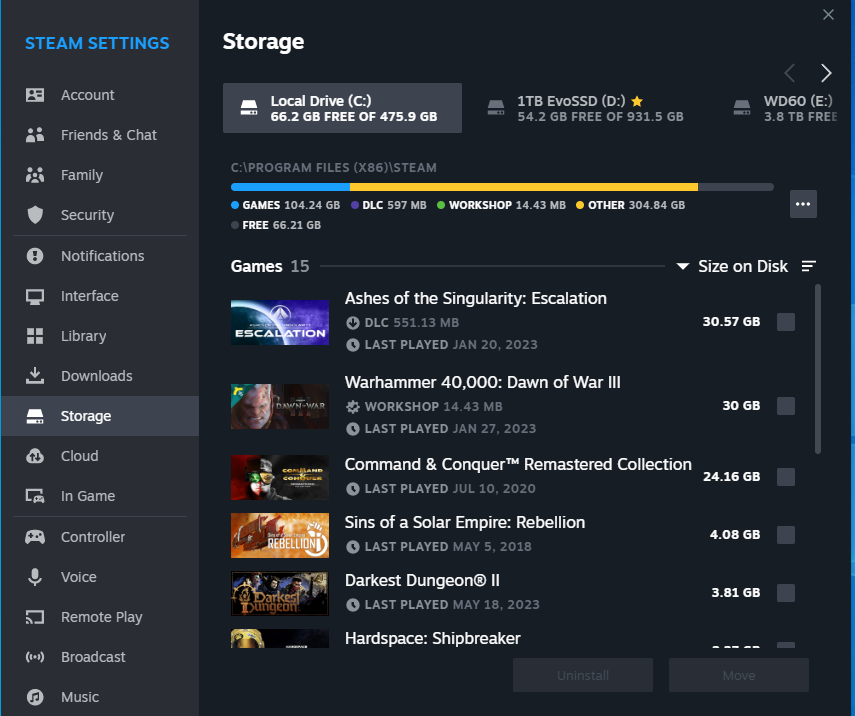
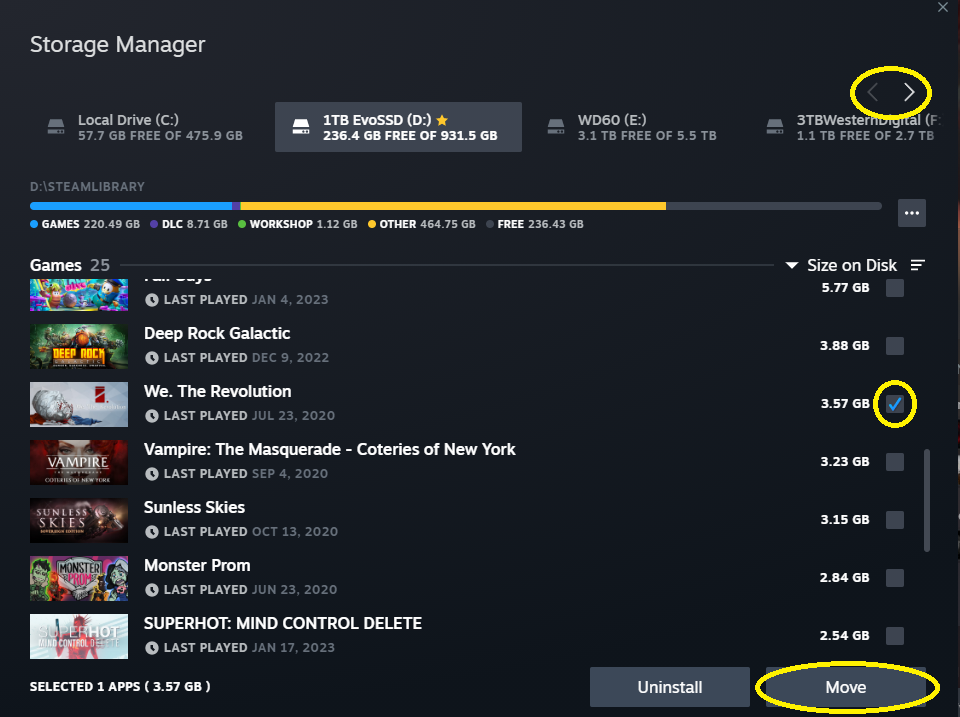
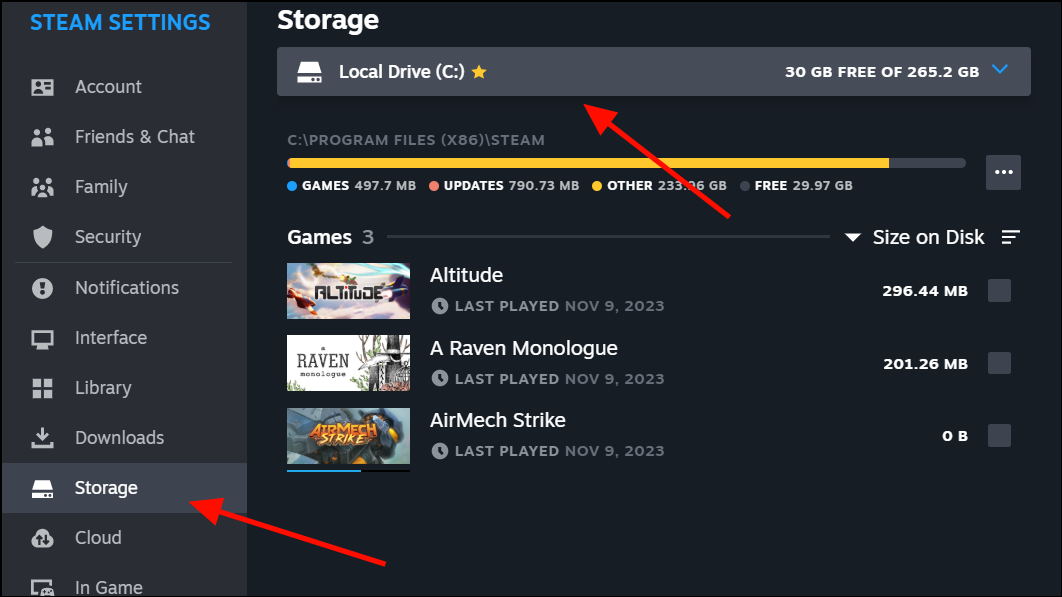
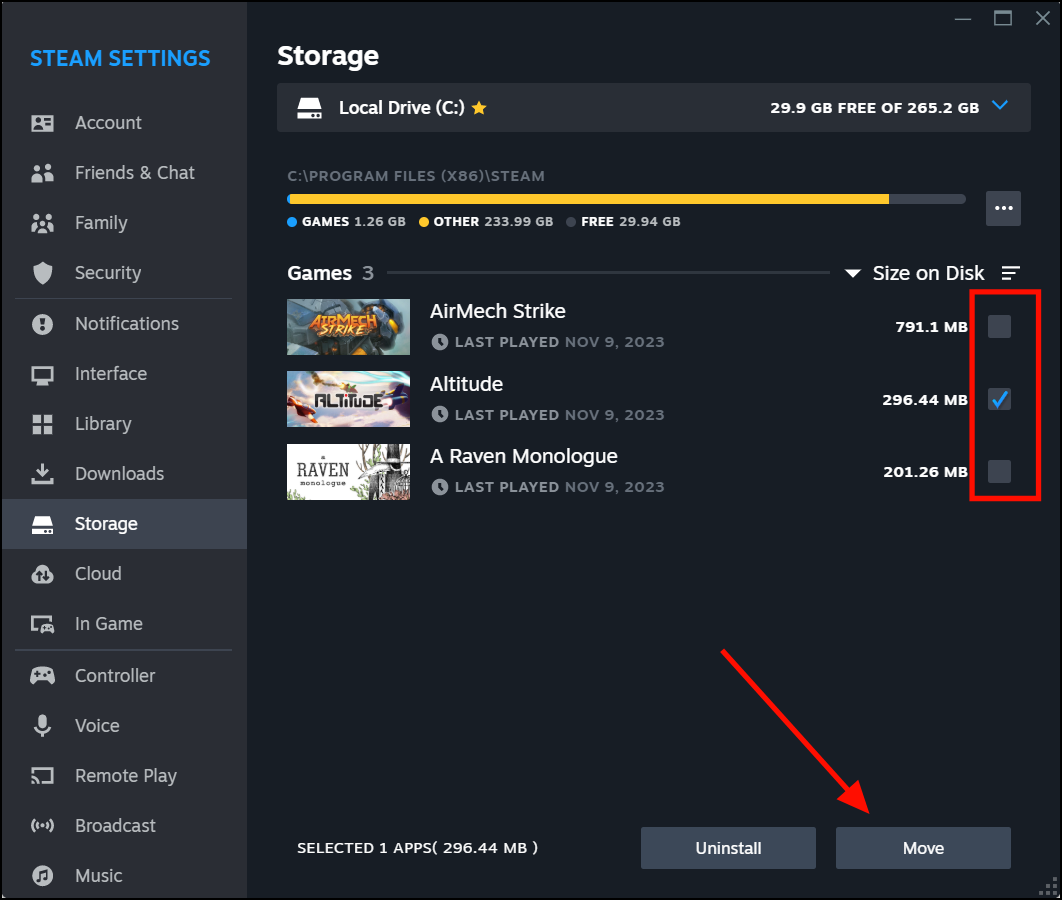
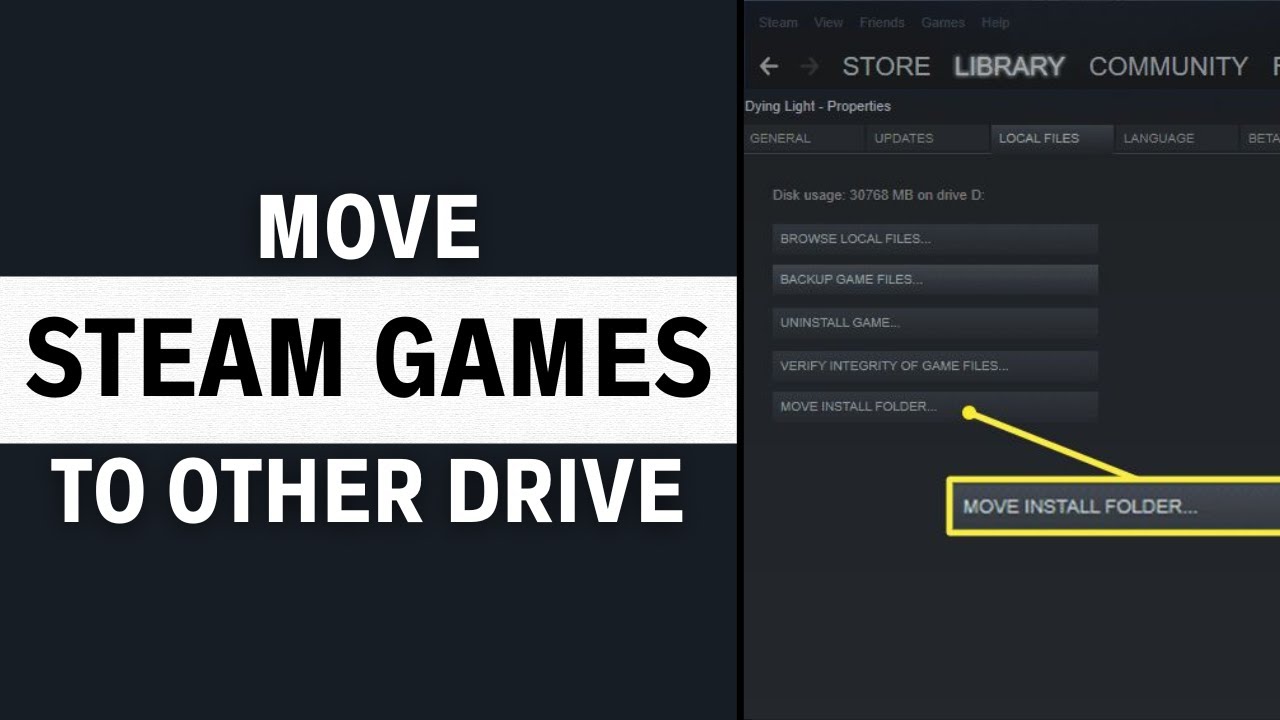
The easiest and most recommended way to move Steam games to a new drive is by using Steam's built-in "Move Install Folder" feature. Navigate to Steam Settings, then Downloads, and click "Steam Library Folders". Here, you can add a new library folder on your target drive. Once added, right-click on the game in your Steam Library, select "Properties", go to the "Installed Files" tab, and choose "Move Install Folder". This process ensures all necessary files, including updates and dependencies, are correctly transferred and recognized by Steam.
Can I copy a game from one Steam account to another?
No, you cannot directly copy a game from one Steam account to another, as game licenses are tied to individual accounts. However, Steam offers a "Family Sharing" feature that allows you to share your game library with authorized family members and friends. This enables them to play games from your library, though only one person can play at a time. The actual game files can be copied manually or via Steam's backup feature to another computer, but the ownership and ability to launch the game remain linked to the purchasing account or an authorized Family Share recipient.
Where are Steam game files stored for copying?
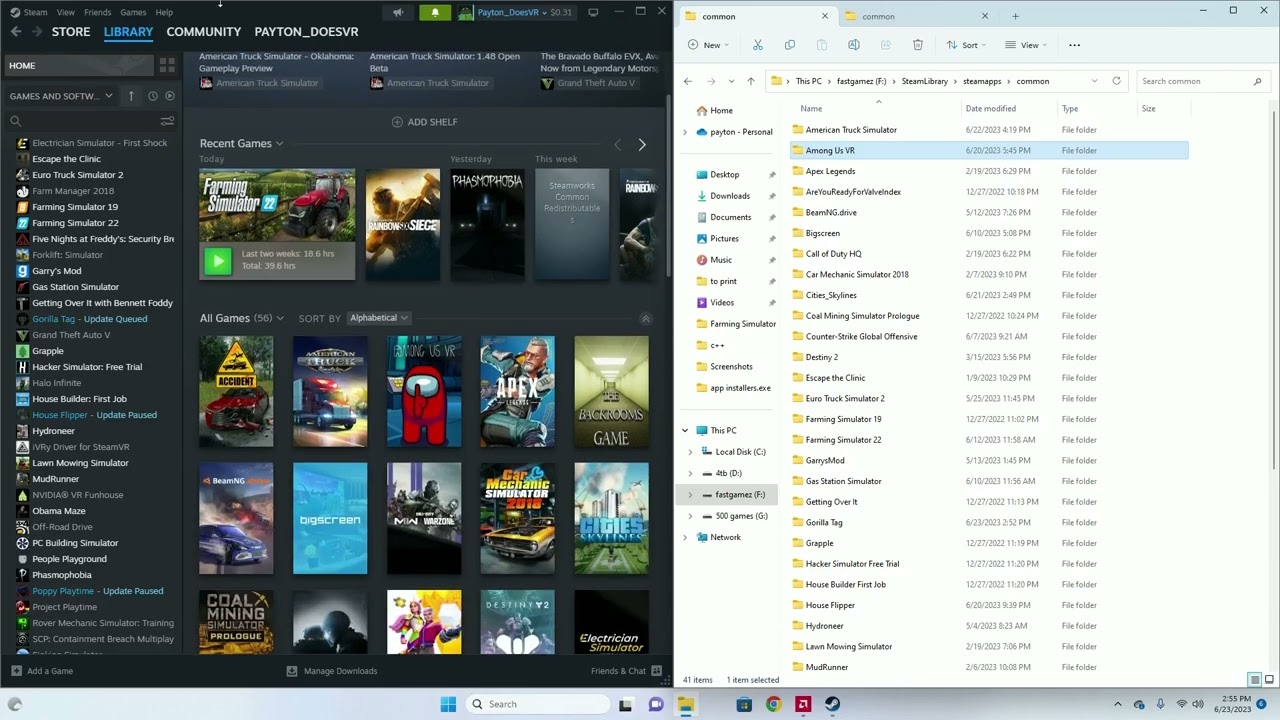
Steam game files are typically stored in the 'Steamapps' folder within your main Steam installation directory. Inside 'Steamapps', you will find the 'common' folder, which contains most of your installed game directories. For example, if Steam is installed on C drive, the path would be C:Program Files (x86)Steamsteamappscommon. When you want to copy a game, you generally copy the specific game folder from within this 'common' directory. Remember that some game-specific data, like saves, might be in your Documents folder or AppData, not directly with the game files.
Will copying a Steam game preserve my game saves and progress?
Copying only the main Steam game files typically does not preserve your game saves and progress automatically, as these are often stored separately. Many modern games utilize Steam Cloud Save to automatically sync your progress, in which case your saves will be downloaded when you reinstall or copy the game on a new system and log in. For games without Steam Cloud, you will need to manually locate and transfer the save files, which are usually found in your Documents folder, AppData, or within the game's installation directory in a specific 'save' folder. Always back up these save files before any major system changes.
Is it faster to copy a Steam game or re-download it?
It is almost always significantly faster to copy a Steam game than to re-download it, especially for large modern titles. Even with a fast internet connection, downloading hundreds of gigabytes can take hours. Copying files locally from one drive to another, or even over a fast local network, typically happens at much higher speeds (e.g., hundreds of MB/s vs. tens of MB/s for downloads). The only exception might be for very small indie games where the overhead of copying setup might outweigh a quick download, but for most AAA titles, copying is the clear winner for time savings.
What tools can help me manage and copy my Steam library efficiently?
Beyond Steam's built-in "Move Install Folder" and "Backup and Restore" features, several third-party tools can assist with managing and copying your Steam library more efficiently. Applications like Steam Mover (for older systems) or more modern solutions that help manage symbolic links can facilitate moving games between drives while Steam still thinks they are in the original location. However, for most users, Steam's native features are robust and reliable. Always use caution with third-party tools and ensure they are from reputable sources to avoid potential issues with your game files or Steam installation.
In the vibrant world of PC gaming, where epic adventures and competitive battles await, few things are more frustrating than staring at a download bar for hours. For the average US gamer, often juggling a demanding job, family commitments, and a yearning for some much-needed relaxation, time is a precious commodity. You've just upgraded your SSD, or maybe you're building a new rig for a family member, and the thought of re-downloading hundreds of gigabytes of your favorite Steam titles like Palworld or the latest Call of Duty is daunting. You're not alone. With 87% of US gamers engaging regularly, often dedicating 10+ hours a week, efficiency is key to maximizing playtime. This is where understanding how to copy Steam game files becomes a game-changer, literally.
Imagine moving your entire Steam library, or just a few colossal titles, from one drive to another, or even to a completely new PC, in a fraction of the time it would take to redownload. This isn't just about speed; it's about smart resource management, performance optimization, and maintaining that delicate balance between your gaming passion and real-life responsibilities. This comprehensive guide is designed for busy gamers like you, those who appreciate practical solutions over hype, and value solid performance on a budget. We're going to dive deep into exactly how to copy Steam game files, exploring multiple methods, troubleshooting common snags, and ensuring your gaming experience remains seamless. Get ready to reclaim your evenings and jump straight into the action.
Why Should Gamers Learn How to Copy Steam Game Files?
For the modern gamer, who often averages around 36 years old and balances life's demands with their gaming hobby, efficiency is paramount. Learning how to copy Steam game files saves significant time and internet bandwidth, which is a major pain point, especially with game sizes consistently pushing past 100GB. Instead of waiting for hours or even days for a massive title to redownload, a quick copy process means more time enjoying your favorite digital worlds. This skill is invaluable for several scenarios.
- Upgrading Hardware: When you install a new SSD or a larger hard drive, migrating your games is a must.
- Building a New PC: Instead of starting from scratch, copy your existing library over.
- Managing Storage: Easily move less-played games to an external drive to free up prime internal SSD space.
- Sharing with Friends/Family: If a friend or family member also owns a game, you can share the files to help them save download time.
- Data Backup: Create a local backup of your beloved titles, just in case.
In a world where mobile gaming still dominates in terms of sheer player numbers, PC gamers continue to invest heavily in their setups. Optimizing how you manage your game files directly contributes to a smoother, more enjoyable experience, allowing you to maximize those precious gaming hours.
What Are the Primary Methods to Copy Steam Game Files?
There are several reliable ways to copy Steam game files, each suited for different situations. Understanding these methods is key to choosing the most efficient path for your specific needs. Steam, the leading PC gaming platform, provides robust built-in tools, but manual methods also offer flexibility for advanced users. Let's break down the main approaches:
1. Steam's Built-In 'Move Install Folder' Feature: This is the official and easiest method for moving games between different Steam Library Folders on the same PC (i.e., from one drive to another). It handles all the underlying file paths automatically.
2. Steam's 'Backup and Restore Games' Feature: Ideal for creating compressed archives of your games, which can then be transferred and restored on any PC. This is excellent for long-term backups or transferring to a completely new system.
3. Manual File Transfer: For those who prefer direct control, you can copy game folders directly from your Steamappscommon directory. This method requires a bit more technical know-how but is often faster for direct drive-to-drive transfers.
4. Third-Party Tools (Use with Caution): While less commonly recommended due to potential compatibility issues, some older tools exist that facilitate game movement via symbolic links. However, Steam's native features are generally sufficient and safer for most gamers.
How to Copy Steam Game Using Steam's Built-In Backup and Restore Feature?
This method is fantastic for creating portable archives of your games, perfect for moving them to a new computer or making a backup. It's especially useful for older titles that you might not play regularly but want to keep handy, or for sharing files with a friend who also owns the game.
Step-by-Step Guide:
- Launch Steam: Open your Steam client and log in.
- Access Backup and Restore: In the top-left menu, click 'Steam' then select 'Backup and Restore Games'.
- Choose 'Backup currently installed programs': Select this option and click 'Next'.
- Select Games to Backup: A list of your installed games will appear. Check the boxes next to the games you wish to copy. Click 'Next'.
- Choose Destination Folder: Select a folder where you want to save the backup files. This can be an external hard drive, a USB drive, or another location on your PC. Steam will tell you the required space. Click 'Next'.
- Set File Size (Optional): You can choose to split the backup into smaller files (e.g., DVD size). For modern drives, 'Custom' or 'No splitting' is often fine. Click 'Next'.
- Start Backup: The backup process will begin. This can take some time depending on game size and drive speed.
- Restore on New PC/Drive: To restore, copy the backup folder to the new PC. Launch Steam, go to 'Steam' > 'Backup and Restore Games' again, but this time select 'Restore a previous backup'. Point Steam to the folder where you saved the backup files, and it will reinstall the game for you.
This method ensures file integrity and proper installation, making it a reliable choice for long-distance transfers or archiving.
How to Manually Copy Steam Game Files to Another Drive or PC?
For gamers who prefer a more direct approach or need to quickly move files without Steam's packaging, manual copying can be faster, especially for direct drive-to-drive transfers. This method requires you to understand where Steam stores its games.
Step-by-Step Guide:
- Locate Your Steam Library Folder: Most Steam games are stored within your Steam installation directory, typically under `C:Program Files (x86)Steamsteamappscommon`. This `common` folder contains individual folders for each of your installed games.
- Identify the Game Folder: Find the specific game folder you wish to copy (e.g., `Cyberpunk 2077`, `Baldurs Gate 3`).
- Copy the Game Folder: Copy this entire game folder to your target destination. This could be another drive on your PC, an external hard drive, or even a network share to another computer.
- On the Destination PC/Drive:
- Ensure Steam is Installed: Make sure Steam is installed on the target machine and you are logged into the account that owns the game.
- Create/Add a Steam Library Folder: If moving to a new drive, go to Steam Settings > Downloads > Steam Library Folders. Click the '+' button to add a new library folder on your target drive if one doesn't exist.
- Paste Game Folder: Paste the copied game folder into the `steamappscommon` directory of your chosen Steam Library Folder on the destination. For example, if your new library is `D:SteamLibrary`, paste it into `D:SteamLibrarysteamappscommon`.
- Initiate Installation in Steam: Go to your Steam Library, find the game you just copied, and click 'Install'. Steam will begin to
Effortlessly transfer Steam games between drives or PCs. Learn manual and automated Steam game copy methods. Save time and bandwidth by avoiding redownloads. Optimize storage management for your gaming library. Troubleshoot common game transfer issues. Understand Steam's built-in backup and restore features. Quick guide for busy gamers balancing life. Keep your game saves and progress intact during transfers.
35#1 Gallery how to copy steam game


Steam How To Copy Steam Games To Another PC 4 YouTube . How To Move A Steam Game To Another Drive Image 239 1 1 . How To Scrape Steam In 2026 Games Reviews Prices And Player Data . How To Move Steam Games To Another Drive FAST EASY Method YouTube . How To Move A Steam Game To Another Drive Image 245 1
#2 Gallery how to copy steam game
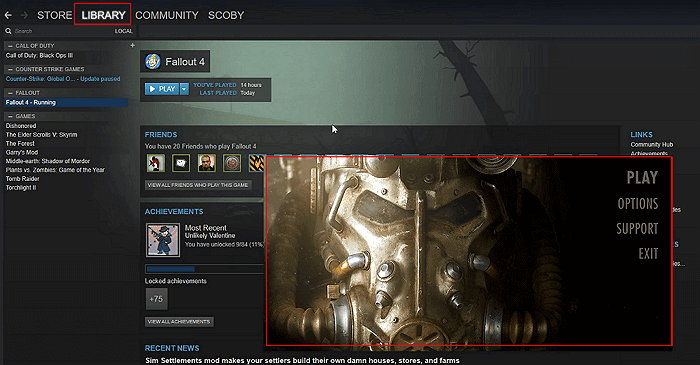


How To Backup Games On Steam Restore Your Games On Steam 2024 YouTube . How To Copy And Transfer Games From PC To USB Efficiently 2026 Transfer Steam Games From Pc To Pc 10 . How To Move Steam Games To Another Hard Drive Quick Easy Guide . How To Move Steam Games To Another Drive WinBuzzer 02.1 Windows 11 Steam Storege Drive Game Move . How To Move Steam Games To Different Drive On STEAM PC Best Method
#3 Gallery how to copy steam game
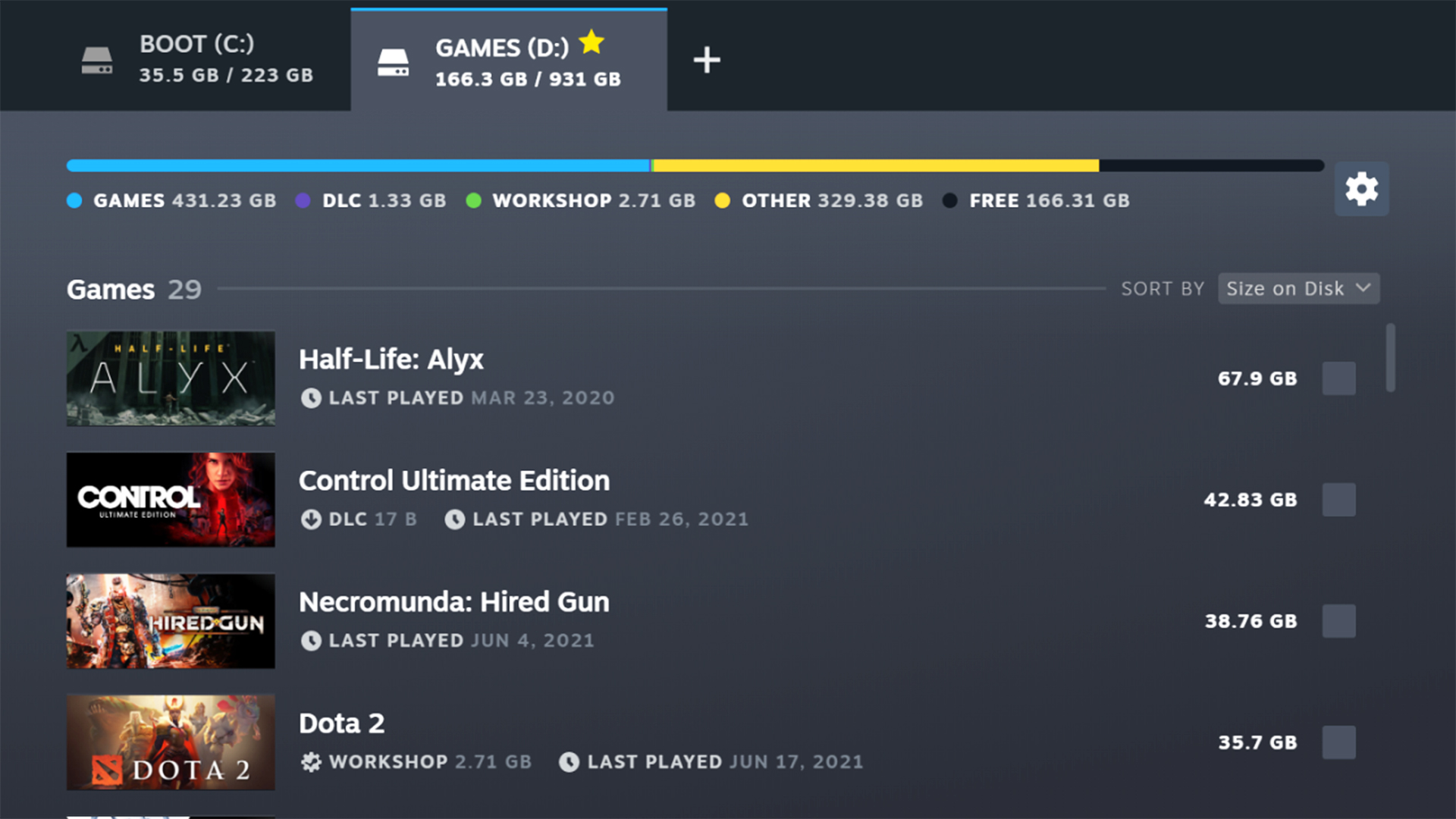
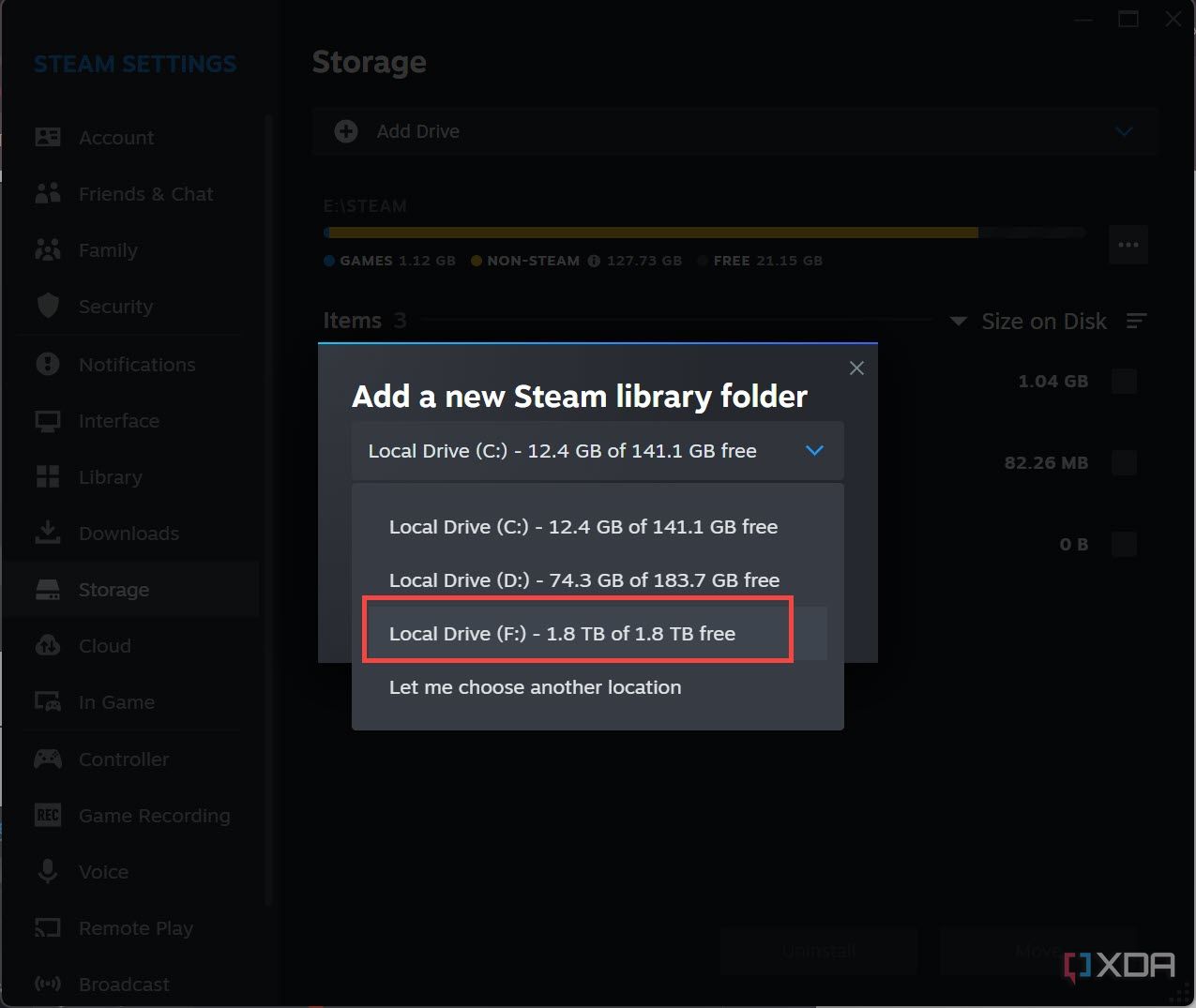

How To Move A Steam Game To Another Drive Image 253 1 . PSA Steam Has A Hidden Feature That Lets You Move Your Game Installs . How To Move Your Steam Games To An External Drive Add Your Ssd To Steam . How To Move Steam Games To Another Drive Best Tutorial YouTube . How To Move Steam Games To Another Drive 2026 Without Or
#4 Gallery how to copy steam game


How To Move Steam Games To Another Hard Drive 2023 Tutorial YouTube . How To Move Steam Games To Another Drive On Mac Full Guide YouTube . How To Move Steam Games To Another Hard Drive 2024 UPDATED YouTube . How To Copy Steam Games From One PC To Another PC Without Re . Steam Community Guide How To Move Steam Games
#5 Gallery how to copy steam game

How To Move Steam Games To Different Hard Drives 2024 YouTube . How To Move Steam Games From One Drive To Another YouTube . Steam Community Guide How To Move Steam Games. Steam March 2026 Client Update Adds Hardware Specs To User Reviews Steam Client Mar 2026 . How To Move Steam Games To Another Drive Without YouTube
#6 Gallery how to copy steam game



How To Move Steam Games To Another Drive The Complete 2026 Guide Airtable 1. Why Do Steam Games Open On Wrong Monitor And How To Change It In 2026 . How To Move Steam Games 2026 Step By Step YouTube . Steam Sale 2026 Key Dates You Need To Know LevelUpTalk Steam Sale Schedule 2026 08 27 2025 7c35051e 2c22 4093 96f1. Steam Drops Free Download For Gorgeous New 2026 Game
#7 Gallery how to copy steam game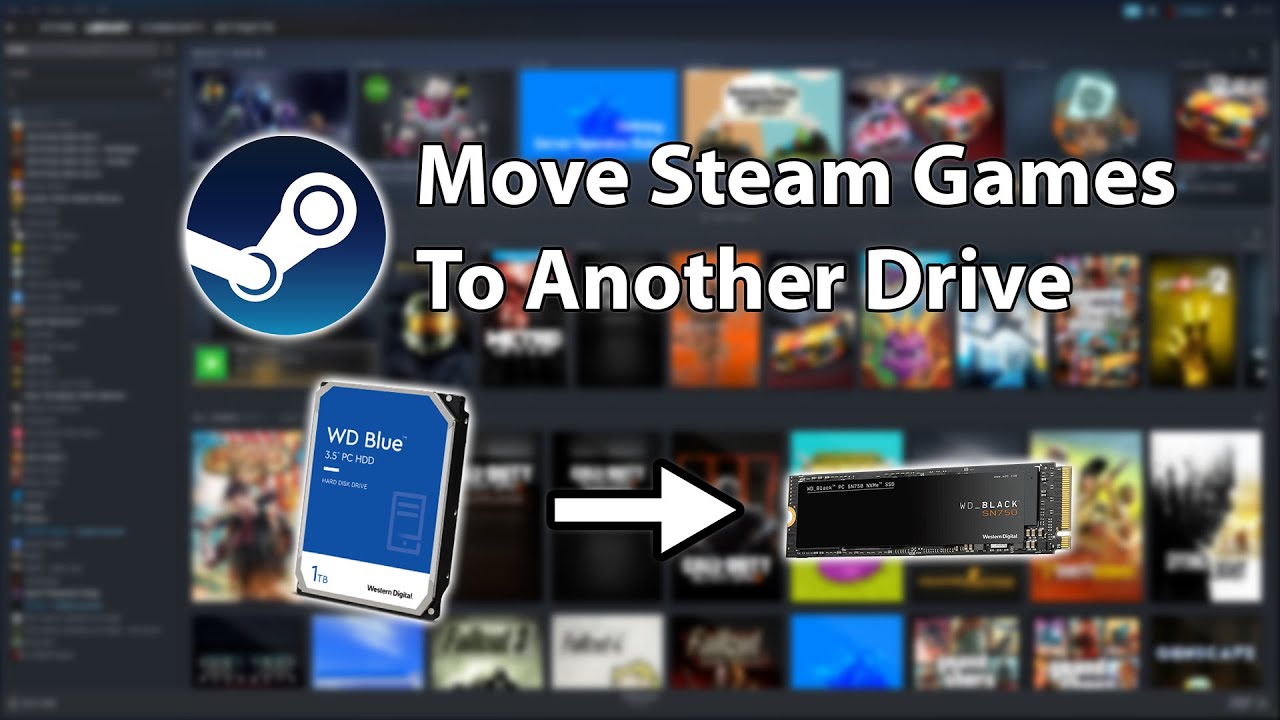



How To Move Steam Games To Another Hard Drive SSD YouTube . How To Move Steam Games To Another Drive Add Storage Location YouTube . How To Transfer Steam Games To Another Computer V2 YouTube . EASIEST Way To Move Steam Games To Another PC NO DOWNLOAD YouTube . How To Safely Move Steam Games And Entire Libraries At Skyrim Nexus Mqdefault