Ever wondered how to capture those epic clutch plays or hilarious in-game moments without a huge headache? Learning how to record gaming videos is easier than you think and a fantastic way to relive memories, share triumphs, and even connect with fellow gamers. For the average US gamer balancing work, family, and life, finding simple, efficient ways to preserve gaming experiences is key. This comprehensive guide cuts through the technical jargon, providing practical, step-by-step advice on how to record gaming videos on PC, consoles, and mobile. We'll cover everything from free software options to optimizing settings for minimal performance impact, ensuring your recordings are crisp, clear, and ready for sharing. Discover how to transform your gameplay into lasting memories or even kickstart a casual content creation journey, all while respecting your precious gaming time and budget. Dive in and master how to record gaming videos today.
Q: How do I record gaming videos on my PC for free without buying software?
A: For PC gamers, several excellent free options exist to record gameplay. If you have an NVIDIA graphics card, use NVIDIA ShadowPlay (within GeForce Experience) which leverages your GPU for minimal performance impact. AMD users have AMD ReLive in Radeon Software for similar efficiency. For a more versatile solution, OBS Studio is a powerful, open-source choice, though it has a slightly steeper learning curve. Windows 10/11 users can also use the built-in Xbox Game Bar (Windows key + G) for quick, simple recordings.
Q: What equipment do I need to start recording console gaming videos in 2026?
A: To record console gaming videos in 2026, you primarily need a capture card. Devices like the Elgato HD60 S+ or AverMedia Live Gamer Mini are popular choices, connecting your console (PlayStation, Xbox, Switch) to a PC. Your PC will need a decent processor (Intel i5/Ryzen 5 or higher), 8-16GB RAM, and an SSD for saving files. For commentary, a good USB microphone (e.g., Blue Yeti) is recommended. The consoles themselves offer basic built-in recording for short clips without extra gear.
Q: How can I record my gameplay on a low-end PC without performance issues?
A: Recording gameplay on a low-end PC without performance issues requires optimization. First, always use hardware encoders (NVENC for NVIDIA GPUs, AMF for AMD GPUs) within software like OBS Studio, as these offload encoding from your CPU. Reduce your recording resolution (e.g., 720p instead of 1080p) and lower the bitrate. Close all unnecessary background applications. Ensure your recording save location is on a separate, fast drive (preferably an SSD) from your game to prevent I/O bottlenecks. These steps minimize system strain.
Q: What are the best ways to capture internal game audio and my voice simultaneously?
A: Capturing internal game audio and your voice simultaneously is straightforward with most recording software. In OBS Studio, for example, you add an "Audio Output Capture" source for game sound and an "Audio Input Capture" source for your microphone. Ensure both are active and adjust their individual volume sliders in the audio mixer for proper balance. On consoles, a capture card setup allows separate audio tracks for game and mic. Mobile devices often have built-in screen recorders that let you choose to record both system audio and microphone input.
Q: What's the simplest way to edit short gaming clips for social media like TikTok?
A: The simplest way to edit short gaming clips for social media like TikTok is often directly on your smartphone using free, user-friendly apps. CapCut is a highly recommended option, available on both mobile and desktop, offering intuitive trimming, text overlays, trending music (be mindful of copyright), and effects specifically tailored for short-form content. You can quickly cut out dead air, highlight key moments, and add captions directly within the app, then export and share in minutes.
Q: Why do my recorded gaming videos look choppy or stutter when I play smoothly?
A: Choppy or stuttering recorded gaming videos, even if your game runs smoothly, typically indicate a bottleneck in your recording setup. Common causes include using a CPU-intensive encoder (like x264 on a weaker CPU), a slow hard drive unable to write video data fast enough (especially if it's the same drive as your game), or insufficient system RAM. To fix this, switch to hardware encoding (NVENC/AMF), use a fast SSD for saving recordings, reduce recording quality (resolution/bitrate), and close background apps to free up resources.
Q: How can I share my recorded gaming videos directly with friends without uploading to public platforms?
A: To share recorded gaming videos directly with friends without uploading to public platforms, several private methods work well. You can transfer the video file directly via a USB drive for local sharing. Cloud storage services like Google Drive, Dropbox, or OneDrive allow you to upload videos and share private links with selected individuals. For smaller clips, messaging apps like Discord, WhatsApp, or Telegram often support direct video uploads, making it easy to share with your personal circle of friends.
Life as a gamer in 2026 is a balancing act. With an average age around 36 and nearly 60% of US adults regularly playing games, many of us are juggling jobs, families, and everyday responsibilities. We game to unwind, to connect with friends, to build skills, or simply for the sheer fun of it. But amidst the daily grind, those unforgettable gaming moments – a perfectly executed strategy, a hilarious glitch, or a hard-earned victory – often slip away. You’ve likely thought, “Man, I wish I’d recorded that!” because preserving these memories, sharing them with buddies, or even reviewing your own performance can add another layer of enjoyment to your already packed schedule.
The good news is that learning how to record gaming videos doesn't have to be a complicated, performance-killing chore. Forget the days of needing expensive dedicated hardware or feeling like you need a degree in video production. Modern tools and techniques make it incredibly accessible for anyone to capture their gameplay, whether you're on PC, console, or even your phone. This guide is your friendly, no-nonsense roadmap to mastering how to record gaming videos without sacrificing your precious gaming time or your wallet. We'll walk you through the simplest setups, budget-friendly options, and performance-saving tips so you can start creating those epic clips today. Let’s dive in and make sure those awesome gaming memories are captured for good!
Why Should I Bother Learning How to Record Gaming Videos?
There are countless reasons why capturing your gameplay is a fantastic idea for any gamer. First and foremost, it's about preserving memories. That amazing headshot, the hilarious chat with your squad, or that incredibly lucky loot drop – these moments are fleeting in real-time but can be relived and cherished forever with a quick recording. Think of it as a digital scrapbook for your gaming journey. Secondly, it's about sharing. With 87% of US gamers regularly playing and many spending 10+ hours a week, gaming is a social activity. Sharing your epic fails and triumphant victories with friends or on platforms like Discord and YouTube is a huge part of the fun, fostering connection and friendly banter. It’s a great way to show off a skill you’ve been honing or just have a laugh.
Beyond personal enjoyment and social sharing, recording can also be a powerful tool for self-improvement. Watching back your own gameplay can reveal tactical mistakes, highlight areas for improvement, or even help you fine-tune your strategies in competitive titles. Many gamers use recordings to analyze their performance, much like athletes review game footage. Lastly, for those considering dipping their toes into content creation, even casually, knowing how to record gaming videos is the absolute first step. You don't need to be a full-time streamer; even short, well-made clips can find an audience and bring new connections. In fact, mobile gaming's dominance means many are sharing clips directly from their phones, showcasing a variety of trending cozy games or quick competitive matches.
What Are the Best Free Software Options for Recording Gaming Videos on PC?
For PC gamers, there are several excellent free options that can get you started capturing high-quality gameplay without spending a dime. These tools are designed to minimize performance impact, which is crucial for those balancing gaming with life and running a system that might not be top-tier. The key is finding a balance between quality and system strain.
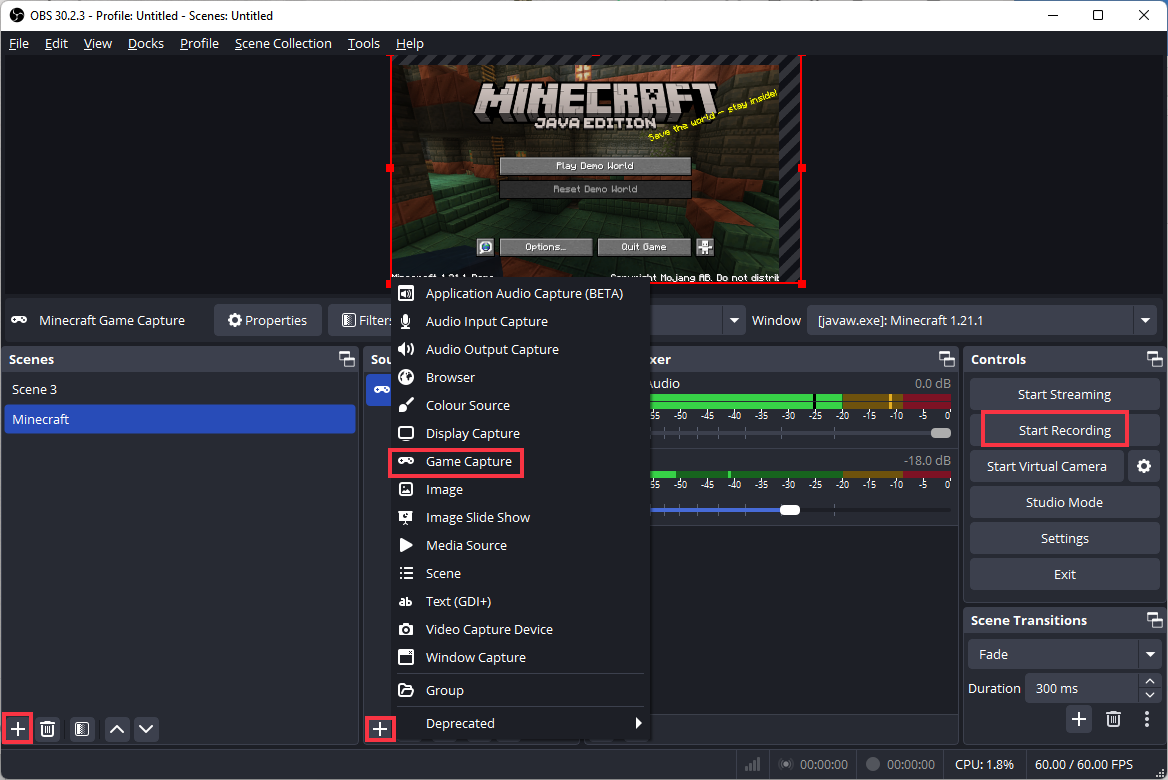
- OBS Studio: This is the undisputed champion for many, especially if you're serious about recording or streaming. OBS Studio is open-source, free, and incredibly powerful. It offers extensive customization for video quality, audio sources, scenes, and overlays. While it has a steeper learning curve than some others, its versatility is unmatched. For beginners, start with simple display or game capture sources and gradually explore advanced settings. It supports NVENC (NVIDIA) and AMF (AMD) encoders, which offload the recording process to your graphics card, significantly reducing CPU strain.
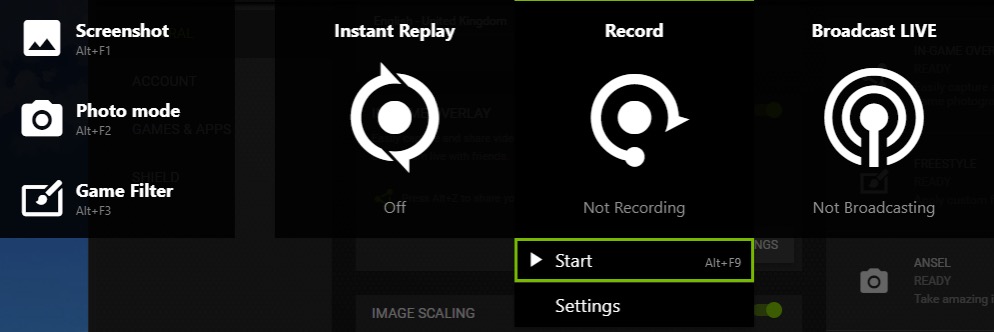
- NVIDIA ShadowPlay (GeForce Experience): If you have an NVIDIA graphics card, ShadowPlay is a fantastic, lightweight option. It's built right into GeForce Experience and offers instant replay (saving the last 30 seconds to 20 minutes of gameplay with a hotkey) and manual recording. Because it leverages your NVIDIA GPU's dedicated encoder, its performance impact is remarkably low, making it perfect for gamers who prioritize smooth frame rates. The interface is super user-friendly.
- AMD ReLive (AMD Radeon Software): Similar to ShadowPlay, AMD ReLive is built into AMD Radeon Software for users with AMD graphics cards. It provides excellent recording and streaming capabilities with minimal performance overhead, thanks to its hardware encoder. ReLive also includes features like instant replay and scene customization, offering a seamless recording experience for AMD users.
- Xbox Game Bar: Windows 10/11 users have the Xbox Game Bar built-in. Press Windows key + G to open it. It's incredibly easy to use for quick recordings, especially for a single game. While it might not offer the same level of customization as OBS, its simplicity and accessibility make it a great starting point for casual captures. It has a 'Record that' button for instant replay functionality too.
When choosing, consider your graphics card first (NVIDIA or AMD) for the lowest performance impact. If you need more control and flexibility, OBS Studio is the way to go, even if it means a little more setup time.
How Can I Record Gaming Videos on Consoles (PlayStation, Xbox, Switch)?
Recording gameplay on consoles has become incredibly user-friendly, catering to the millions of US gamers who prefer their couch gaming experience. Each major console offers built-in recording features, and for more advanced needs, external capture cards are readily available.
PlayStation (PS4/PS5):
- Built-in Recording: Both PS4 and PS5 have robust sharing features. A quick tap of the Share button (PS4) or Create button (PS5) opens a menu where you can save a recent gameplay clip (typically the last 15 minutes to an hour, depending on your settings) or start a new recording. Video quality can be set up to 1080p for PS4 and 4K for PS5, directly from the system settings. Clips are saved to your system's gallery and can be easily uploaded to YouTube, Twitter, or transferred via USB drive.
- Capture Card: For longer recordings, higher bitrates, or more advanced overlays and commentary, an external capture card like an Elgato HD60 S+ or AverMedia Live Gamer is ideal. These connect between your console and TV/monitor, passing the video signal through to your computer, where you can then record using software like OBS Studio.
Xbox (Xbox One/Series X|S):
- Built-in Recording: Press the Xbox button on your controller, then navigate to "Capture & Share." Here you can "Record what happened" (up to 2 minutes at 1080p, or longer at lower resolutions) or "Start recording" for manual capture. Clips are saved to your console and can be uploaded to Xbox Live, OneDrive, or transferred to an external drive. Xbox Series X|S supports up to 4K recording directly.
- Capture Card: Similar to PlayStation, an external capture card provides more control over quality, length, and editing flexibility, connecting your Xbox to a PC for recording via OBS or proprietary software.
Nintendo Switch:
- Built-in Recording: The Switch has limited built-in video recording. Holding down the Capture button (the square one under the directional pad) will save the last 30 seconds of gameplay. This is great for quick, unexpected moments, but it's the only direct recording option without external hardware.
- Capture Card: For anything longer or higher quality on the Switch, a capture card is essential. Connect the Switch dock to the capture card, and the capture card to your PC, then use recording software.
Remember that console built-in recording is fantastic for casual shares, but a capture card opens up professional-grade content creation possibilities.
How Do I Record Gaming Videos on Mobile Devices (iOS/Android)?
Mobile gaming is huge, with many US gamers engaging with titles from cozy simulations to fast-paced competitive games on their smartphones. Luckily, recording your mobile gameplay is surprisingly straightforward, with built-in tools or free apps making it simple.
iOS (iPhone/iPad):
- Built-in Screen Recorder: Apple devices have a native screen recording feature. Go to Settings > Control Center > Customize Controls, and add "Screen Recording." Then, swipe down from the top-right corner (or up from the bottom for older iPhones) to open Control Center, tap the record icon, and select your microphone if you want to add commentary. This records everything on your screen, including game audio.
- Third-Party Apps: While built-in is usually sufficient, apps like Record it! or DU Recorder offer more editing features directly on your phone.
Android:
- Built-in Screen Recorder: Many modern Android phones (e.g., Samsung, Google Pixel) come with a built-in screen recorder accessible from the quick settings panel (swipe down from the top). Look for an icon that resembles a camera or a video recorder. These typically allow you to record internal audio, microphone audio, and adjust resolution.
- Third-Party Apps: For older Android devices or more features, apps like AZ Screen Recorder, Mobizen, or XRecorder are popular choices. They offer robust recording options, including resolution, bitrate, frame rate, and even simple editing tools.
Mobile recording is perfect for quickly sharing a funny moment in a trending social game or showing off a new strategy. It's incredibly convenient and requires no extra hardware.
What Hardware Do I Need to Record High-Quality Gaming Videos Without Lag?
The hardware requirements for recording gaming videos largely depend on your platform and desired quality. The goal for many busy gamers is to capture great footage without impacting their gameplay, especially when balancing performance with life's other demands. Here's a breakdown:
- PC Gaming:
- Strong CPU/GPU: A modern multi-core CPU (Intel i5/Ryzen 5 or better) and a dedicated GPU (NVIDIA RTX 2060/AMD RX 5600 XT or better) are recommended. Modern GPUs have dedicated encoders (NVENC for NVIDIA, AMF for AMD) that handle video encoding with minimal impact on gaming performance.
- Plenty of RAM: 16GB of RAM is generally the sweet spot for gaming and recording simultaneously, preventing bottlenecks.
- Fast Storage: An SSD (Solid State Drive) is crucial for installing your games and, ideally, for saving your recordings. Writing large video files to an SSD is much faster and less prone to stuttering than to a traditional HDD.
- Microphone: For commentary, a decent USB microphone (e.g., Blue Yeti, HyperX QuadCast) significantly improves audio quality over built-in options.
- Console Gaming (with Capture Card):
- Capture Card: This is the essential piece. Popular choices include Elgato (HD60 S+, 4K60 Pro MK.2) or AverMedia (Live Gamer Mini, Live Gamer Ultra). Choose one that matches your console's output resolution (1080p or 4K) and your budget.
- PC for Capture: You'll still need a reasonably powerful PC to run the capture software and encode the video. The PC requirements here are similar to those for PC gaming mentioned above, as the PC will be doing the heavy lifting of processing the video stream from the capture card.
- Mobile Gaming:
- Modern Smartphone: Most recent smartphones (within the last 2-3 years) have enough processing power and storage to record their own screen without significant lag.
- Ample Storage: Video files can be large, so ensure you have enough free space on your device.
The key takeaway is to leverage hardware encoders whenever possible, whether that's your GPU on PC or a dedicated capture card for consoles. This offloads the work and keeps your frame rates smooth.
How Can I Optimize My Settings to Record Gaming Videos Without Performance Drops?
Recording gameplay and maintaining smooth performance is a common challenge for gamers. Thankfully, smart configuration can drastically reduce lag and frame rate drops. This is particularly important for those with mid-range systems who want to get good value from their hardware without immediate upgrades.
- Use Hardware Encoders: As mentioned, this is paramount. If you have an NVIDIA GPU, use NVENC. If AMD, use AMF (H.264 or H.265/HEVC). These dedicated chips are designed for video encoding and have minimal impact on your gaming performance compared to CPU-based encoding (x264).
- Lower Bitrate if Necessary: Bitrate determines the quality and file size. While higher is generally better for quality, it also demands more resources. If you experience stutters, slightly reduce your bitrate. For 1080p at 60fps, 8,000-12,000 kbps for H.264 is a good starting point for local recordings. You can often go higher for better quality if your system handles it.
- Match Resolution and Frame Rate: Try to record at the same resolution and frame rate you play at. If you play at 1440p but record at 1080p, scaling can sometimes add unnecessary processing. However, if your system struggles, recording at 1080p while playing at 1440p can reduce the load. A consistent 60fps is usually preferred for gaming videos.
- Choose a Fast Recording Drive: Always save your recordings to a drive separate from the one your game is installed on. An SSD is ideal for this. Writing large video files to an SSD is much faster and less prone to stuttering than to a traditional HDD.
- Prioritize Recording Software: In Task Manager (Ctrl+Shift+Esc), you can set the priority of your recording software (e.g., OBS Studio) to "Above normal" or "High" to ensure it gets enough CPU cycles, though be careful not to set it too high as it can starve your game.
- Close Background Applications: Every open program consumes resources. Close web browsers, Discord (unless needed for comms), and any other non-essential applications to free up RAM and CPU cycles for your game and recorder.
- Update Drivers: Keep your graphics card drivers up to date. Manufacturers frequently release optimizations that can improve performance for both gaming and recording.
Experiment with these settings. Start with conservative options and gradually increase quality until you find the sweet spot that doesn't impact your gaming experience. For many, finding value for money means optimizing what you have, not just buying new hardware.
What Are Some Quick Tips for Editing Gaming Videos for Sharing?
Once you've captured your gameplay, a little editing can go a long way in making your videos engaging and ready to share with friends or an online community. You don't need to be a professional editor; even simple cuts can elevate your content. For gamers balancing life, quick and effective editing is key.
- Trim the Fat: The most important step is to cut out boring parts. No one wants to watch you loading screens, wandering aimlessly, or long stretches of inaction. Get straight to the good stuff – the clutch play, the funny moment, the intense firefight. Keep your clips concise; shorter videos (1-5 minutes) are often more digestible for casual viewing.
- Free Editing Software:
- DaVinci Resolve (Free Version): This is a professional-grade editor with a surprisingly robust free version. It has a steeper learning curve but offers incredible power for color grading, audio, and complex edits.
- CapCut (Desktop/Mobile): Extremely popular for short-form content, CapCut offers intuitive mobile and desktop apps with trendy effects, music, and simple cutting tools. It's excellent for quick shares.
- Windows Video Editor / iMovie (Mac): Basic but functional, these built-in editors are perfect for simple trimming, adding text, and combining clips.
- Add Music (Carefully): Background music can dramatically enhance a video's mood. Just be mindful of copyright! Use royalty-free music from libraries like YouTube Audio Library or Epidemic Sound (some free options available) to avoid issues if you plan to share publicly.
- Basic Audio Cleanup: If you're adding commentary, a little noise reduction can make a big difference. Most editing software has basic tools to reduce background hiss or hum. Ensure your game audio and commentary are balanced.
- Text and Effects (Sparingly): Use on-screen text for context or funny captions. Simple transitions between clips are fine, but don't overdo flashy effects, especially if you're just starting out. Subtlety often works best.
- Export Settings: When exporting, generally aim for 1080p at 60fps for good quality. If you're uploading to YouTube, their recommended settings can guide your bitrate choices for optimal compression.
Even spending 10-15 minutes on a clip can transform raw footage into something much more enjoyable and sharable. It's about making your content pop without taking away from your valuable gaming time.
Where Are the Best Places to Share My Gaming Videos?
Once you've mastered how to record gaming videos and polished your clips, it's time to share them with the world! The right platform depends on your goals, whether you're just showing off to friends or hoping to connect with a broader community. For gamers who enjoy social play, sharing is a key part of the experience.
- YouTube: The undisputed king for video content. Ideal for longer videos, tutorials, montages, or full gameplay sessions. It offers great monetization potential if you grow an audience and powerful analytics. Uploading is straightforward, and the community is massive.
- TikTok / Instagram Reels / YouTube Shorts: These platforms are perfect for short, impactful clips (under 60-90 seconds). They thrive on quick, entertaining, and trending content. If you've captured a hilarious moment, an epic clutch, or a quick highlight, these are the places to go for maximum reach and virality.
- Discord: Excellent for sharing directly with your gaming community, guild, or friends. You can upload short clips directly to chat or link to longer videos hosted elsewhere. It's a personal and immediate way to engage with your circle.
- Twitter / X: Great for quick updates, linking to longer videos, or sharing very short, engaging clips. Gaming news and reactions often break here, making it a good place for topical content.
- Reddit: Find subreddits dedicated to specific games or gaming in general. Sharing your clips here can get them in front of a highly engaged and relevant audience, but be sure to follow each subreddit's rules about self-promotion.
- Facebook Groups: Many game-specific or general gaming groups on Facebook are active. Sharing your content there can foster discussion and connection, especially with older demographics.
Consider your audience and the type of content you have. A quick mobile clip of a trending indie game might perform best on TikTok, while a detailed strategy breakdown belongs on YouTube. Don't be afraid to experiment and see where your content resonates most!
What About Copyright for Game Music and Footage?
This is a crucial point for anyone learning how to record gaming videos, especially if you plan to share them publicly. Copyright can be a tricky maze, but understanding the basics will save you a lot of headaches.
- Game Footage: Most game developers and publishers are generally permissive about creators recording and sharing gameplay footage, especially for review, commentary, or transformative content. Many even have specific policies outlined on their websites. However, directly re-uploading cutscenes or entire playthroughs without any added value (commentary, editing, educational purpose) can sometimes run into issues. Always check the publisher's terms of service or creator guidelines if you're unsure.
- In-Game Music: This is where most problems arise. While developers are usually fine with you showing their game, the music within the game is often licensed from third parties or owned separately. This means that if you include in-game music in your video, especially if you monetize it, you could receive a copyright claim.
- Content ID System: Platforms like YouTube use an automated Content ID system that scans videos for copyrighted music. If detected, your video might be muted, demonetized, or even blocked in certain regions.
- Solutions:
- Mute In-Game Music: The safest option is to turn down or mute the in-game music in your game settings or during editing.
- Replace Music: Use royalty-free music from libraries (YouTube Audio Library, Epidemic Sound, etc.) or music you have personally licensed.
- Developer Permission: Some developers specifically state that their in-game music is fine for creators, but this is less common.
- Fair Use: In the US, "fair use" doctrine allows for limited use of copyrighted material for purposes such as commentary, criticism, news reporting, teaching, scholarship, or research. However, fair use is a legal defense, not an automatic right, and it's determined on a case-by-case basis. It's often safer to avoid copyrighted music if possible.
When in doubt, err on the side of caution with music. Prioritize your own commentary, game sound effects, and royalty-free tracks to avoid potential issues down the line.
Conclusion
Learning how to record gaming videos opens up a whole new dimension to your gaming experience. Whether you're capturing a personal triumph, sharing a laugh with your online crew, or embarking on a casual content creation journey, the tools and techniques are more accessible than ever. We've covered everything from free software on PC and built-in console recorders to mobile solutions and critical optimization tips to keep your frame rates smooth.
Remember, the goal isn't necessarily to become the next big streamer, but to enrich your enjoyment of gaming. Preserving those fleeting moments, connecting with friends through shared clips, and even improving your own skills by reviewing gameplay are all incredibly rewarding aspects. Don't let the technical side intimidate you. Start simple, experiment with what works best for your setup and schedule, and most importantly, have fun creating! What's your biggest gaming challenge when it comes to capturing those epic moments? Comment below and let's help each other out!
Frequently Asked Questions About Recording Gaming Videos
Q: What is the easiest way to record gaming videos for beginners?
A: The easiest way for beginners to record gaming videos depends on your platform. For PC, start with NVIDIA ShadowPlay (GeForce Experience) or AMD ReLive if you have the respective GPU, or the Xbox Game Bar on Windows. For consoles, use the built-in share/create features. Mobile phones also have native screen recorders, offering immediate, simple solutions without extra downloads.
Q: Can I record gaming videos in 4K resolution?
A: Yes, you can record gaming videos in 4K, but it requires more powerful hardware. For PC, you'll need a robust GPU and CPU, and you'll use software like OBS Studio with appropriate settings. On consoles, PS5 and Xbox Series X|S offer native 4K recording, and for external capture, a 4K-compatible capture card is essential, paired with a powerful PC.
Q: Does recording gameplay significantly impact game performance?
A: Recording gameplay can impact performance, but modern hardware encoders (NVENC for NVIDIA, AMF for AMD) and optimized software minimize this impact significantly. Using a dedicated SSD for recordings and closing unnecessary background apps also helps. If performance is critical, check your settings and prioritize hardware encoding to keep your frame rates smooth.
Q: How much storage space do gaming videos take up?
A: Gaming videos can take up a lot of storage space, especially at higher resolutions and bitrates. For example, 1080p 60fps footage at 10,000 kbps can use around 4-5 GB per hour. 4K footage will consume even more. It's highly recommended to have a large SSD or a dedicated hard drive for storing your raw footage before editing and compressing.
Q: Is it better to record raw footage or compressed?
A: It's almost always better to record raw footage or footage with minimal compression initially. This preserves the highest quality and gives you more flexibility during editing. You can then compress the video for sharing (e.g., uploading to YouTube). Recording directly in a highly compressed format can lead to noticeable quality loss and artifacts that cannot be fixed later.
Q: What's the difference between streaming and recording gameplay?
A: Streaming (live broadcasting) sends your gameplay in real-time to a platform like Twitch or YouTube, often with audience interaction. Recording saves your gameplay locally to your computer or console for later editing and uploading. While both use similar capture methods, streaming often requires a more stable internet connection and lower latency settings, whereas recording prioritizes file quality for post-production.
Q: Can I record my webcam and microphone with gameplay?
A: Absolutely! Most recording software, like OBS Studio, allows you to add multiple sources, including your gameplay, webcam feed, and separate microphone audio. You can arrange these elements on screen and adjust individual audio levels for a professional-looking video with commentary and facecam. Consoles might require specific accessories or capture cards to integrate webcams easily.
Easy setup for recording gaming videos on any platform. Optimize performance for smooth gameplay while recording. Free and budget-friendly software solutions. Tips for high-quality audio and video capture. Share your best gaming moments with friends and community.
35


How To Record Gaming Videos On PC For YouTube Step By Step Guide . Gaming Content Creation With Screen Recording The Ultimate 2026 Guide Gaming Content Creation With Screen Recording The Ultimate 2026 Guide . Top Game Recording Tools For 2026 Best Game Recording Software 2026 Banner.webp. How To Record Gameplay On PC Laptop Full Guide YouTube . How To Record Games For FREE On PC Using OBS YouTube

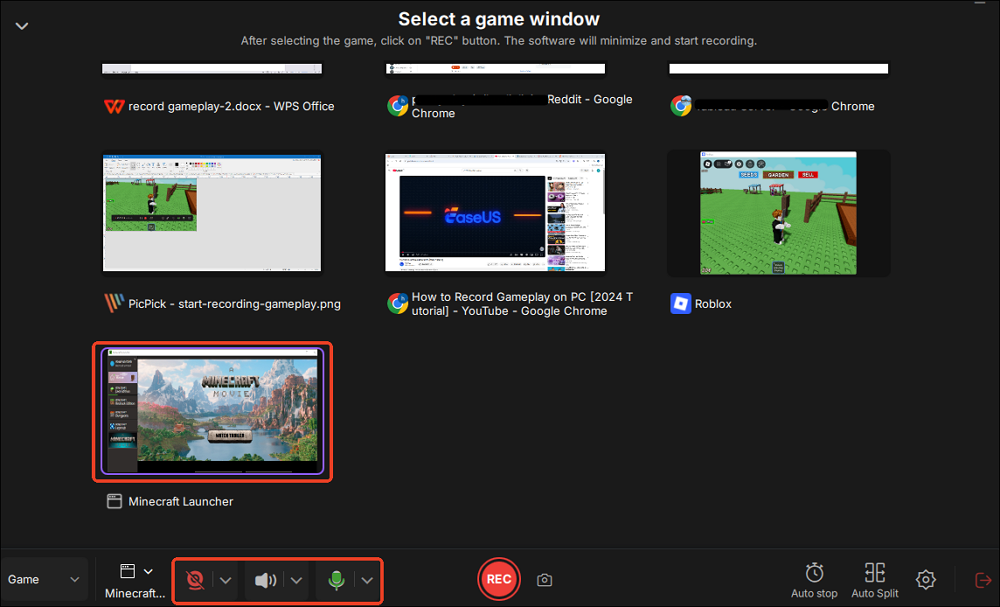
How To Record Games On PC In 2026 4 Pro Ways No Lag 4K End Gameplay Recording . How To Record Game Video YouTube . How To Record Film Yourself While Playing Video Games On Windows Mac . How To Screen Record On Your Gaming Laptop Useful Tips YouTube . OBS Game Capture Not Working With League Of Legends 2026 Fixes EaseUS Choose A Game Window Record



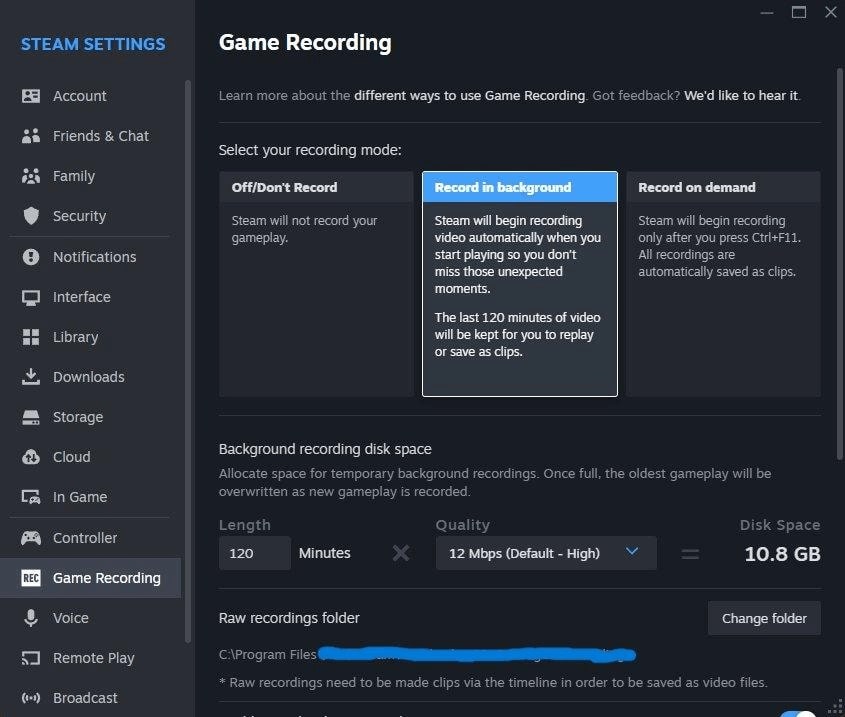
Top 10 Most Anticipated Games Of 2026 What To Watch Out For TVN GAMES IN 2026 . How To Record Games On PC With OBS Studio Recording Tutorial BEST . Screen Recording Tips How To Record Gaming Videos For Youtube . HOW TO RECORD GAMES USING XBOX GAME BAR WINDOWS 10 APPS . How To Record On Steam 5 Workable Ways In 2024 Game Recording



How To Record Gaming Videos With OBS CapCut 2026 Beginner Tutorial . How To Stream Games Like A Pro The Complete 2026 Guide Gameania Record As A Pro In 2026 . How To Use Steam Game Recording 2026 Step By Step YouTube . How To Delete Particular Recording In Hikvision NVR 2026 Guide How To Delete Particular Recording In Hikvision Nvr 0.webp. How To Record Gameplay On PC 2025 5 Different Methods YouTube



How To Check Recording Settings Hikvision NVR In 2026 How To Check Recording Settings Hikvision Nvr 0.webp. Recording Labels Accepting Demos In 2026 Are You Pitching To Ghosts BjdgUJeku6r. Guinness World Records 2026 Hardcover Target GUEST 772a3ab6 B2bc 43a7 9edd. How To Record Gameplay On PC With Voice Record Gaming Videos For . How To Record On Vivint Camera In 2026 Easy Guide How To Record On Vivint Camera 0.webp


GUINNESS WORLD RECORDS GAMER EDITION 2026 ShopForGeek Com GAS07032025 1 . How To Record Gameplay On PC Like A Pro Even If You Re Not TechCabal How To Record Gameplay On Pc Like A Pro 1024x768 . What S The Best Way To Record Minecraft In 2026 I Tried Them All Obs Record Minecraft Gameplay . How To Record Gaming Videos For YouTube Screen Recorder For YouTube . How To Use NVIDIA ShadowPlay Hotkey 2026 Overview Start Recording With Nvidia Screen


How To Record Gaming Videos For YouTube In 2025 Best Software Tips How To Record Gaming Videos For. How I Record Edit Gaming Videos Free Tool I Wish I Knew About Sooner . How To Make Obs Record Only Game Audio 2024 Quick Easy YouTube . How To Record Gaming Videos Using ITop Screen Recorder IFun How To Record Gaming Videos Using Ifun . How To Record Gaming Videos For YouTube On PC 2023 YouTube