Many Mac Roblox players struggle with fully pausing their game, especially when real-life calls from jobs, families, or quick errands. Unlike traditional single-player titles, Roblox generally lacks a universal pause button, making sudden interruptions frustrating and potentially costly in-game. This comprehensive guide addresses that common pain point, offering practical, tested methods to effectively "pause" your Roblox experience on a Mac. We will delve into various strategies, from leveraging macOS features to understanding game-specific mechanics, ensuring you can step away without losing progress or being eliminated. Discover how to manage your gaming sessions efficiently, allowing you to balance virtual adventures with your daily responsibilities. Whether you need to grab a quick snack, attend to a child, or answer an urgent work call, learning these techniques will empower you to control your Roblox playtime on your Apple device. This informational resource helps you stay current with best practices for a seamless gaming-life integration, crucial for the average US gamer who enjoys competitive and social play.
Related gamesHow do Mac users typically "pause" Roblox games?
Mac users typically "pause" Roblox games by leveraging macOS features like minimizing the window (Command M), hiding the application (Command H), or switching to another desktop using Mission Control. These methods don't stop the game server-side but hide the visual interface, allowing players to briefly attend to other tasks without quitting the game. Many also seek out in-game safe zones before stepping away to avoid being attacked or eliminated.
What is the closest thing to a "pause button" for Roblox on Mac?
The closest thing to a "pause button" for Roblox on Mac, unofficially, involves either finding a developer-designated safe zone within a specific game or temporarily suspending your Mac's activity via sleep mode. However, actual server-side pausing is generally not possible. Minimizing or hiding the application is more of a visual pause for the user, while the game continues running in the background.
Will disconnecting my internet pause Roblox on my MacBook?
Disconnecting your internet will eventually lead to your Roblox client losing connection to the server, resulting in a full disconnection rather than a true pause. While your client-side game might briefly appear to "freeze" before the disconnection message, it's not a viable method for taking a quick, temporary break as you'll have to rejoin the game entirely.
Are there any Roblox games on Mac that have an actual pause feature?
While the Roblox platform itself lacks a universal pause, a very small number of individual Roblox experiences, typically single-player oriented or narrative-driven games, might feature a custom pause menu implemented by their developers. These are exceptions, not the rule, and are entirely game-specific rather than a system-wide feature.
How can I avoid getting kicked for being AFK in Roblox on my Mac?
To avoid getting kicked for being AFK (Away From Keyboard) in Roblox on your Mac, your best bet is to find a designated safe zone within the game where you won't be harmed and then try to engage in minimal interaction before stepping away. Some players use auto-clickers or simple input automation, though this can violate Roblox's terms of service in some contexts.
What macOS shortcuts are helpful for quick Roblox breaks?
For quick Roblox breaks on your Mac, Command + M minimizes the Roblox window to the Dock, and Command + H hides the entire application from view. Additionally, using Mission Control (three/four-finger swipe up) allows you to quickly switch to another desktop or application, keeping Roblox running in the background without being displayed.
Why does my character keep moving or taking damage after I minimize Roblox on my Mac?
Your character continues to move or take damage even after minimizing Roblox on your Mac because the game is an online multiplayer experience. Minimizing only hides the application window on your local machine; your character's state and interactions are still being processed by the Roblox servers in real-time alongside other players. You are still "in" the game, just not actively viewing it.
Every gamer knows that feeling: you're deep into a Roblox adventure on your Mac, meticulously building a virtual empire or outmaneuvering opponents, when suddenly, real-life demands a pause. Whether it's a child's cry, an urgent work email, or just the need for a quick snack, the universal 'pause' button we take for granted in single-player games is conspicuously absent in most online multiplayer experiences like Roblox. For the average US gamer, often balancing work, family, and personal life, the inability to completely pause a game on Mac Roblox can be a genuine source of frustration. With an estimated 87% of US gamers playing regularly and many dedicating 10+ hours a week, efficient game management is crucial for maintaining that delicate balance.
This isn't just about convenience; it's about preserving your progress, avoiding in-game penalties, and making the most of your precious gaming time. Many Roblox players, especially on Mac, find themselves scrambling when an unexpected interruption occurs. This comprehensive guide is designed to empower you with practical, battle-tested strategies to effectively "pause" your Roblox game on a Mac, even when the game itself doesn't offer a direct option. We'll explore various methods, from leveraging built-in macOS features to understanding game-specific mechanics, ensuring you can step away confidently without losing your edge. Get ready to master the art of the quick break and integrate your Roblox fun seamlessly into your busy life.
Why can't I just pause Roblox like other games on my Mac?
Unlike traditional single-player games that run locally on your Mac, Roblox is a massively multiplayer online (MMO) platform. This means your game state, character actions, and environmental changes are constantly being synchronized with Roblox servers and other players in real-time. If you were to simply 'pause' your local game instance, the server would still perceive your character as active or idle, and other players would continue their actions. This real-time interaction is fundamental to Roblox's social and dynamic nature. Introducing a universal client-side pause would break the immersion and fairness for everyone else playing, leading to issues like unfair advantages or desynchronization. Therefore, the concept of a true "pause" button, as seen in offline games, doesn't exist for the vast majority of Roblox experiences.
What are the best general strategies to "pause" Roblox on a Mac?
Since a direct pause isn't available, Mac users need to employ clever workarounds. The most effective strategies involve either minimizing the game's activity or finding a safe, inconspicuous spot within the game itself. These methods aim to reduce your character's vulnerability and preserve your progress while you step away. Understanding the context of your specific Roblox game is key, as some experiences are more forgiving to AFK (Away From Keyboard) players than others. Always consider the potential for in-game events, player interaction, or server timeouts when deciding on your "pause" method.
- Minimize or Hide the Application: The simplest way to step away without closing the game is to minimize or hide the Roblox application.
- Find a Safe Zone: Many Roblox games, particularly those with social hubs or persistent worlds, offer areas where players are immune to damage or less likely to be disturbed.
- Utilize macOS Sleep Mode (Cautiously): For longer breaks where you want to keep the game running in the background without active CPU usage.
- Temporary Internet Disconnection (Last Resort): This can effectively freeze your client-side game, but comes with significant caveats.
How can I minimize Roblox without losing progress or getting kicked?
Minimizing Roblox on your Mac won't pause the server-side action, but it will hide the game from your screen and free up your focus for other tasks. To do this, you have a few options:
- **Command M:** Pressing
Command + Mwill minimize the active Roblox window to your Dock. Your character will remain in the game, potentially vulnerable, but the game won't be consuming your screen space. - **Command H:** Using
Command + Hwill hide the Roblox application entirely, making it disappear from your screen without minimizing it to the Dock. You can then access other applications without the Roblox window interfering. - **Three-Finger Swipe (Mission Control):** Swiping up with three or four fingers (depending on your trackpad settings) activates Mission Control. You can then click on another desktop or application window to switch context without directly minimizing Roblox. The game will continue running in the background on its own desktop space.
While these methods hide the game, remember your character is still present in the game world. If the game has AFK timers, you might still get kicked for inactivity. For games where you might be attacked or fall, find a safe spot first.
Is there a way to temporarily freeze my game state on Mac?
A true "freeze" of your client-side game state, while maintaining server connection, is generally not possible in an online game like Roblox without exploiting or disconnecting. However, the closest you can get to a temporary freeze often involves **disconnecting your internet connection**. When your Mac loses internet, the Roblox client will typically attempt to reconnect for a short period before displaying a "Disconnected" message. During this brief window before the full disconnection, your character's actions might appear to freeze from your perspective, though the server will eventually mark you as disconnected. This is a very crude method and almost always leads to a full disconnection, meaning you'll have to rejoin the game. It's not recommended for quick pauses as it disrupts your session completely.
Another option, though less a "freeze" and more a suspension, is putting your entire Mac to sleep. If your Mac goes into **sleep mode**, the Roblox application will suspend its processes. When you wake your Mac, Roblox *might* attempt to reconnect or pick up where it left off, but this is highly dependent on the game's server timeout settings and your internet stability. For short periods, this can work, but for anything longer than a few minutes, you risk being disconnected from the game entirely.
What about game-specific pause features in Roblox experiences?
While Roblox itself doesn't have a universal pause, some individual **Roblox experiences (games)** implement their own forms of "pausing" or safe zones. These are entirely dependent on the game developer and are not a feature of the Roblox platform itself.
- **Developer-Created Pause Menus:** A very small number of niche experiences might have a custom pause menu that stops your character's movement, brings up a GUI, and prevents damage. These are rare in competitive or social games.
- **Safe Zones or AFK Areas:** Many popular games, especially simulators, RPGs, or social hangouts, feature designated "safe zones" or "AFK farms" where players cannot be attacked, take fall damage, or are immune to certain environmental hazards. Positioning your character in such an area before stepping away is often the most reliable "pause" method.
- **Inventory/Menu Screens:** Opening an in-game inventory, shop, or settings menu might visually pause the action on your screen, but your character remains vulnerable in the game world. Use these only if you are already in a safe spot.
Always check the specific game's mechanics or community forums to see if it offers any such features. This month, many new "cozy" and social games are emerging that are more forgiving to players who need to step away briefly.
How do I use macOS features to take a quick break from Roblox?
macOS offers several features that, while not a direct "pause" for Roblox, can help you manage your gaming sessions and take breaks without completely quitting the game:
- **Minimize to Dock (Command M):** As mentioned, this tucks the window away.
- **Hide Application (Command H):** The application becomes invisible but remains active.
- **Multiple Desktops (Mission Control):** Create a new desktop space (swipe up with three/four fingers, then click the
+icon). Drag Roblox to this new desktop. When you need to switch away, simply swipe between desktops. Roblox continues running on its own space, out of sight. This is excellent for quickly accessing work or other apps. - **Do Not Disturb Mode:** Enable Do Not Disturb (via Control Center or System Settings) to silence notifications that might pull you out of immersion. This won't pause the game but helps you focus.
- **Screen Saver / Display Sleep:** If you enable a screen saver or let your display go to sleep (System Settings -> Lock Screen), Roblox will continue running in the background, but your screen will be locked. This is good for very short breaks if you're not worried about AFK kicks.
- **App Nap (Automatic):** macOS intelligently manages background apps. When Roblox is minimized or on an inactive desktop, App Nap might reduce its CPU usage, but it won't stop the game's process or prevent server interaction.
These macOS features are crucial for gamers who balance multiple responsibilities. Being able to quickly transition between Roblox and other tasks without losing your place is a valuable skill for today's busy adult gamer.
Are there any risks to trying to pause Roblox using these methods?
Yes, there are a few risks to be aware of when attempting to "pause" Roblox on your Mac without a dedicated in-game feature:
- **AFK Kicks:** Most online Roblox games have an automatic kick feature for players who are inactive for too long. The exact timeout varies by game, but it's usually between 10-20 minutes. If you're AFK for too long, you'll be disconnected, losing any unsaved progress or current session benefits.
- **In-Game Vulnerability:** Unless you're in a designated safe zone, your character remains vulnerable to attacks from other players, environmental hazards, or even falling off the map in many games. Returning to find your character eliminated or your inventory gone can be frustrating.
- **Server Timeouts:** If you completely disconnect your internet or put your Mac to sleep for an extended period, the Roblox server will eventually lose connection with your client, resulting in a full disconnection.
- **Resource Usage:** Even when minimized or in the background, Roblox still consumes system resources (CPU, RAM, network bandwidth). While App Nap helps, it's not a full stop. For older Macs, this might impact overall system performance if you're multitasking heavily.
- **Missing Events:** You might miss out on limited-time events, quests, or social interactions happening in the game while you're away.
Understanding these risks helps you choose the most appropriate "pause" strategy for your specific situation and the Roblox game you're playing.
What should I do if I need to step away for a longer period?
For breaks longer than a few minutes, where an AFK kick is likely or in-game danger is high, the most reliable strategy is to **save your progress and gracefully exit the game**. While this isn't "pausing," it ensures you don't lose anything and can rejoin refreshed.
- **Save Progress:** In games that allow it, ensure all your progress, builds, or inventory changes are saved. Look for auto-save indicators or manual save options.
- **Find a Safe Exit:** Teleport to a designated lobby, hub, or safe zone if available.
- **Exit Roblox:** Close the Roblox application completely. This frees up system resources and prevents any AFK kicks or unexpected losses.
- **Utilize Rejoin Features:** Many modern Roblox games offer a "rejoin" option on their game page, allowing you to quickly get back into the last server you were on, especially if you were playing with friends.
Remember, your time is valuable. It's better to take a clean break than to constantly worry about what's happening to your character while you're away. This approach aligns with the mindful gaming habits common among US gamers who prioritize balance.
How can I manage my time better when playing Roblox on Mac?
Effective time management is key for adult gamers. Here are some tips to integrate Roblox into your busy schedule:
- **Set Playtime Limits:** Use macOS Screen Time features to set app limits for Roblox, or simply set a timer for your session.
- **Schedule Gaming:** Treat gaming like any other appointment. Dedicate specific blocks of time when you know you won't be interrupted.
- **Play Shorter Sessions:** Opt for Roblox experiences that are designed for shorter playtimes or have clear save points.
- **Communicate with Family/Housemates:** Let others know when you're about to start a game, especially if it's an online multiplayer session that can't be paused.
- **Prioritize Single-Player or Cozy Games:** For times when interruptions are frequent, choose Roblox games that are less demanding in terms of constant attention, or even switch to single-player experiences outside Roblox.
- **Use Discord for Social Play:** Coordinate with friends on Discord. If you need to step away, a quick message to your team can prevent issues and help them cover for you.
By proactively managing your gaming time, you reduce the need for emergency "pauses" and enhance your overall enjoyment.
Navigating the "no pause" reality of Roblox on a Mac can be challenging, but it's far from impossible. By understanding the nature of online multiplayer games and skillfully leveraging both in-game mechanics and macOS features, you can effectively manage your sessions and take those crucial real-life breaks. From finding safe zones to utilizing Mission Control, the strategies outlined here empower you to maintain control over your gaming experience, ensuring you can balance your virtual adventures with your real-world responsibilities. Remember, your gaming time is for enjoyment and relaxation, and knowing how to step away confidently is a big part of that. Keep these tips in mind, and you'll master the art of the Roblox power break on your Mac.
What's your biggest gaming challenge when life calls in the middle of a session? Comment below!
Can I really pause any Roblox game on my Mac?
No, a true universal pause button does not exist for most Roblox games due to their online, multiplayer nature. The methods discussed here are workarounds to minimize your vulnerability or step away without fully quitting, not a client-side freeze.
What's the safest way to take a quick break in Roblox on Mac?
The safest way is to find an in-game "safe zone" or an area where other players cannot harm you, then minimize the application using Command M or switch to another desktop using Mission Control.
Will my Mac go to sleep if Roblox is running?
Yes, your Mac can go to sleep even with Roblox running. If it enters sleep mode, the game's processes will suspend, likely leading to a disconnection from the Roblox server after a few minutes once you wake your computer.
Does hiding the Roblox app (Command H) stop the game?
No, hiding the Roblox application with Command H only removes its window from your screen. The game continues to run in the background, and your character remains active and vulnerable in the game world.
How long can I be AFK in Roblox before getting kicked?
The AFK (Away From Keyboard) kick timer varies significantly by individual Roblox game. Most games will kick inactive players after 10-20 minutes to free up server resources and prevent static players. Always be mindful of this limit.
Is there a specific Mac setting to help with Roblox breaks?
Using macOS Mission Control to move Roblox to its own desktop space or quickly switch between applications is one of the most effective Mac-specific settings to manage breaks without closing the game. Do Not Disturb mode also helps silence notifications.
Why do other players still move if I minimize Roblox on my Mac?
Roblox is an online multiplayer platform. When you minimize or hide the game, your Mac's client is no longer displayed, but the game's state and other players' actions continue on the central Roblox servers, which your client is still connected to.
No universal pause in Roblox. Use macOS features like Command H or Command M. Game-specific pause menus or safe zones. Disconnecting internet for temporary freeze. Utilizing system sleep mode. Managing background activity. Strategies for busy gamers. Understanding AFK kicks. Safe zones in Roblox.
35


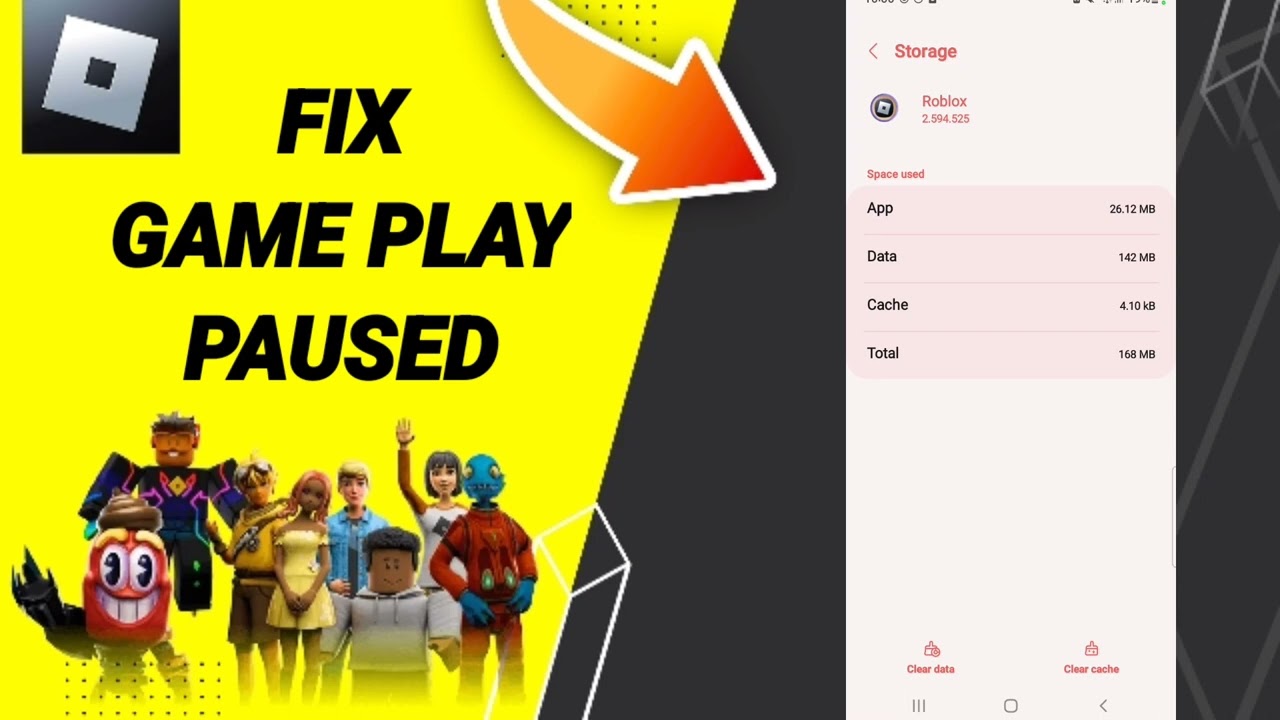

How To Stop The Roblox Gameplay Paused Message Full Fix Guide 2026 . How To Pause Roblox Like Ncraft2 YouTube . How To Stop Roblox Gameplay Paused 2025 Full Guide YouTube . How To Fix Game Play Paused On Roblox App YouTube . GamePlay Paused Script Scripting Support Developer Forum Roblox 2 690x437

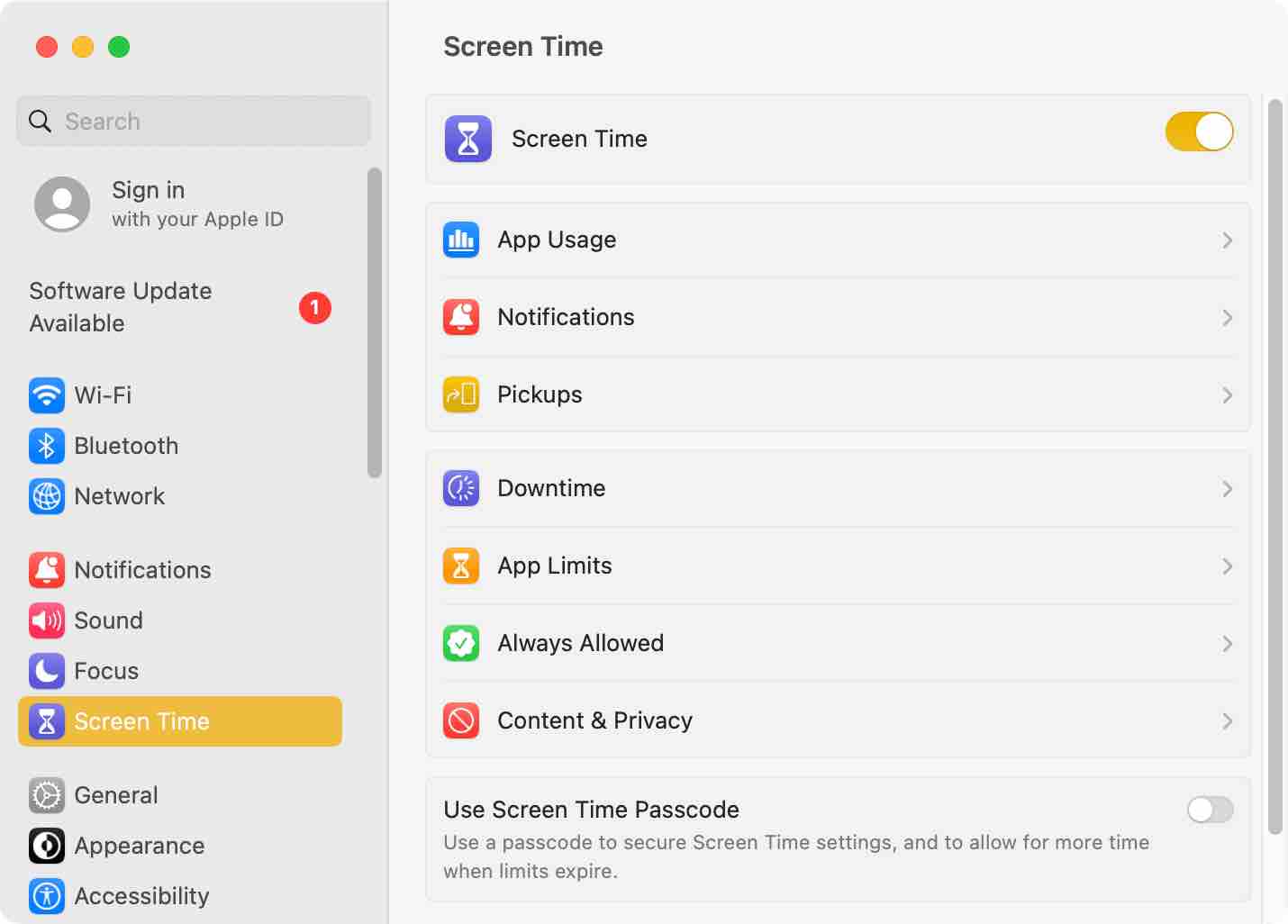
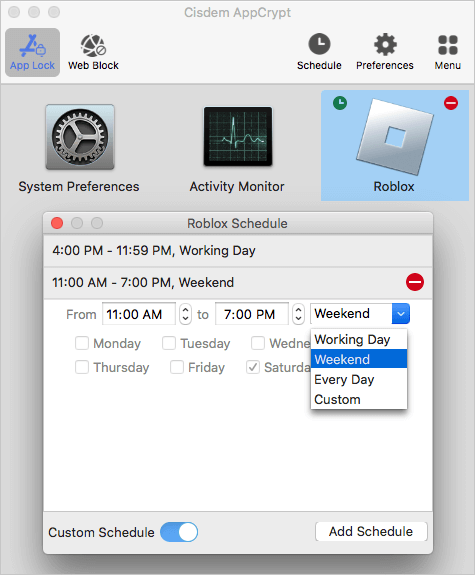


How To Stop The Roblox App From Showing Up When Your Leaving A Game . How To Block Roblox On Mac Windows Android And IOS Easily Screen Time Mac . How To Block Roblox On Mac Windows Android And IOS Easily Cisdem Appcrypt Mac Roblox App Custom Schedule . How To Leave The Game On Roblox Tutorial YouTube . How To Stop Playing Roblox Completely Playgama Blog ChatGPT Image Jul 9 2025.webp


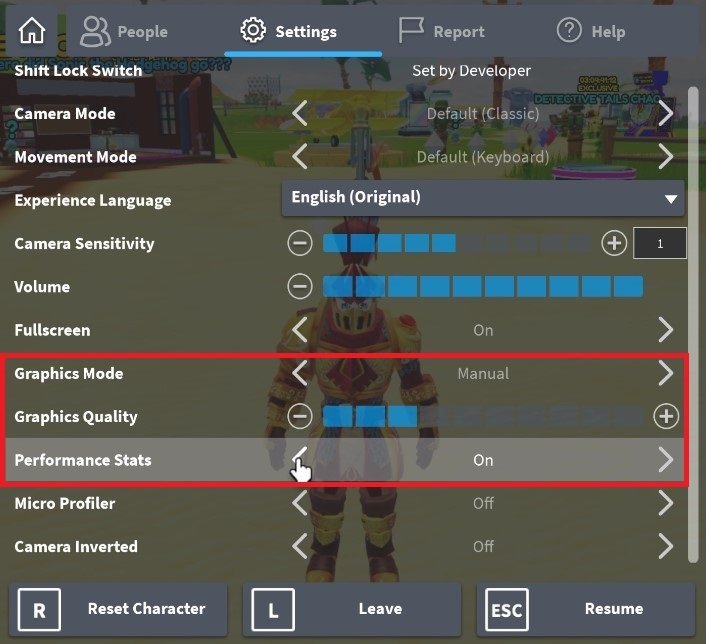


HOW TO LEAVE A ROBLOX GAME YouTube . How To Turn Off Joins In Roblox Quick Step By Step Guide Turn Off Joins In Roblox Step 17 . How To Fix Lag While Playing Roblox On Mac OS Tech How 1 Change Roblox Graphics Settings. Seeking Roblox Via Google Drive Is It Safe And Smart In 2026 1200x630wa . How To Remove Games From Continue Playing On Roblox 2026 YouTube

2 Ways To Completely Uninstall Roblox On Mac Dr Buho Image. Roblox Privacy Stop Unwanted Joins 2025 Roblox 2 1 . How To Stop Roblox From Playing LIHS . How To Fix Roblox Game App Keeps Pausing Step By Step YouTube . 9 Ways To Fix Roblox Black Screen Issue Windows Mac Force Quit Window Roblox

How To Leave A Roblox Game With Keyboard Fast YouTube . How To Fix Lag While Playing Roblox On Mac OS Tech How Mac Os Storage Settings. How To Fix Lag While Playing Roblox On Mac OS Tech How Disable Low Power Mode. How To Stop Roblox Online Game From Crashing MykeYames How To Stop Roblox Online Game From Crashing . Stop Roblox Crashing Your Easy Guide Roblox Keep Crashing



Is Roblox Shutting Down What Players Need To Know Gamer Org Is Roblox Shutting Down What Players Need To Know 768x403 . How To Reduce Lag On Roblox PC Mac Mobile Xbox One V4 459px Reduce Lag On Roblox Step 5 Version 3 . How To Fix Lag While Playing Roblox On Mac OS Tech How 2 Mac Os Software Update. How To Fix Roblox Not Launching On Mac OS Tech How 4 Disable App Limits. How To Reduce Lag On Roblox PC Mac Mobile Xbox One V4 728px Reduce Lag On Roblox Step 20 Version 3



O QUE CAUSA E COMO RESOLVER O GAMEPLAY PAUSED NO ROBLOX 2021 YouTube . How To Stop People From Joining Your Games On Roblox PC Mobile 2024 . Stop Roblox Crashing Your Easy Guide Roblox Keeps Crashing . HOW TO ADD A SOFT SHUTDOWN TO YOUR GAME Roblox YouTube . How To Remove Gameplay Pause In Roblox Driving Simulator YouTube