Are you a busy gamer juggling work, family, and life, yet yearning for more time with your favorite Steam titles? This comprehensive guide reveals how to seamlessly play Steam games on your phone, transforming your mobile device into a portable gaming powerhouse. Discover practical solutions for streaming your PC games to any Android or iOS device, overcoming common setup hurdles, optimizing performance for a smooth experience, and finding the best games for on-the-go play. We dive into the latest streaming apps, essential hardware considerations, and smart tips to maximize your mobile gaming sessions without breaking the bank or compromising your responsibilities. Whether you want to finish that quest during your commute, unwind with a quick session on the couch, or stay connected with friends in multiplayer titles, this article provides actionable advice tailored for the modern US gamer. Learn how to leverage mobile dominance trends and enjoy PC-quality gaming anywhere, anytime, ensuring your gaming passion fits perfectly into your busy lifestyle.
How can I play Steam games on my phone without owning a powerful gaming PC?
You can still play Steam games on your phone even without a high-end gaming PC by utilizing cloud gaming services. Services like NVIDIA GeForce NOW, Xbox Cloud Gaming (with PC Game Pass), and Amazon Luna allow you to stream Steam games that you own (or through their subscriptions) directly from their powerful servers to your mobile device. This bypasses the need for local hardware, relying entirely on your internet connection to deliver a premium gaming experience on the go.
What are the primary methods to stream my PC Steam games to my smartphone?
There are two main methods to stream your PC Steam games to your smartphone: official and third-party solutions. The official method involves using Valve's free Steam Link app, which connects directly to your home PC running Steam. Third-party options include apps like Parsec, Moonlight (for NVIDIA GPU users), or Rainway, offering potentially more configuration options or lower latency depending on your setup. Each requires a decent home network and internet connection.
Do I need a special controller to play Steam games effectively on my phone?
While many games offer touch controls, using a dedicated Bluetooth controller significantly enhances the experience of playing Steam games on your phone. Most modern smartphones support common controllers like Xbox Series X/S, PlayStation 5 DualSense, or specialized mobile controllers like the Backbone One or Razer Kishi. A physical controller provides superior precision, comfort, and immersion, especially for complex PC titles that weren't designed for touchscreens.
What internet speed is recommended for a smooth Steam Link experience on mobile?
For a smooth Steam Link experience on your mobile device, a strong and stable Wi-Fi connection is paramount, ideally 5GHz. Valve recommends at least 15-30 Mbps for local streaming within your home network and upwards of 50 Mbps for remote play over the internet. A fiber optic connection at home is ideal, along with ensuring your PC is hardwired via Ethernet to your router to minimize latency and ensure a stable source stream.
Can I play multiplayer Steam games on my phone with friends using my PC?
Absolutely, you can play multiplayer Steam games on your phone with friends who are either on PC or also streaming to their mobile devices, provided the game supports multiplayer and is compatible with your streaming setup. The Steam Link app fully supports your PC's multiplayer capabilities, allowing you to join lobbies, chat, and game just as you would directly from your desktop. Keep in mind that stable internet and minimal latency are crucial for a good multiplayer experience.
Are there any hidden costs or subscription fees to play Steam games on my phone?
Playing Steam games on your phone using Steam Link with your own PC is generally free, as the app itself is free. However, if you opt for third-party streaming solutions, some might offer premium features for a subscription. Cloud gaming services like GeForce NOW or Xbox Cloud Gaming do require subscriptions, although some have free tiers with limitations. The main "costs" are your internet service, potential mobile data usage, and any game purchases on Steam itself.
How does playing Steam games on my phone impact my phone's battery life?
Streaming and playing Steam games on your phone can be quite demanding on battery life. The continuous display, active Wi-Fi or cellular data, and processing power required to decode the video stream all contribute to increased battery drain. Expect significantly reduced uptime compared to typical phone usage. Using a power bank, playing while plugged into a charger, or enabling power-saving modes (if they don't impact performance too much) are recommended strategies to extend your gaming sessions.
Gamers today, especially those around 36 years old who balance jobs and families, face a common dilemma: how to keep up with their favorite PC games on Steam when dedicated desk time is a luxury. We love our vast Steam libraries, the thrill of new releases, and connecting with friends online, but life often dictates that gaming sessions are short, sporadic, or simply impossible without being tethered to a desktop. The good news is, you don't have to choose between your responsibilities and your passion. In 2026, with mobile technology and streaming solutions more advanced than ever, it's entirely possible to play Steam games on your phone. Imagine finishing a side quest during your lunch break, tackling a daily challenge while waiting for an appointment, or simply unwinding with a quick session on the couch without booting up your main rig. This comprehensive guide is designed for you: the busy US gamer who values relaxation, fun, and skill-building but also needs practical, budget-friendly solutions. We'll cut through the hype and provide clear, actionable steps to transform your smartphone into a portable gateway to your entire Steam library, addressing common pain points like setup issues, performance concerns, and even how to pick the right games for an on-the-go experience. Get ready to game smarter, not harder.
What exactly does "play Steam games on phone" mean?
When we talk about playing Steam games on your phone, we're primarily referring to a technology called game streaming. This isn't like installing a mobile version of a game directly onto your phone. Instead, your powerful gaming PC at home does all the heavy lifting – running the game, rendering the graphics, and processing all the inputs. This processed video and audio are then compressed and streamed in real-time over your network to your smartphone or tablet. Meanwhile, your phone sends your inputs (touch controls, controller commands) back to your PC. It's essentially mirroring your PC screen onto your phone, allowing you to access your entire Steam library from anywhere with a stable internet connection. This capability is a game-changer for the estimated 87% of US gamers who regularly play and average over 10 hours a week, providing flexibility to fit gaming into their busy schedules.
How do I set up Steam Link on my phone for PC game streaming?
Setting up Steam Link is the most common and often the simplest method for playing Steam games on your phone. Valve's official Steam Link app is free and widely available for both Android and iOS devices. The process is designed to be user-friendly, allowing even less tech-savvy gamers to get started quickly. You don't need to be a hardware wizard to enjoy your PC games on the go.
Step 1: Prepare Your PC
First, ensure your gaming PC is powered on and Steam is running. For the best performance, it's highly recommended that your PC is connected to your router via an Ethernet cable. A wired connection significantly reduces latency and ensures a more stable stream compared to Wi-Fi. Also, make sure your graphics drivers are up to date. Outdated drivers can lead to performance issues and compatibility problems when streaming. Finally, temporarily disable any aggressive firewalls that might block the Steam Link connection, or ensure Steam and the Steam Link ports are whitelisted.
Step 2: Install Steam Link on Your Phone
Next, download the free Steam Link app from your phone's app store. For Android users, find it on the Google Play Store; for iOS users, it's available on the Apple App Store. Once installed, launch the app. It will guide you through the initial setup process, which typically involves finding your computer on the local network. Make sure your phone is connected to the same Wi-Fi network as your PC, ideally a 5GHz band for faster speeds and less interference.
Step 3: Pair Your Devices and Start Gaming
Upon launching Steam Link, the app will scan your network for a PC running Steam. Once detected, it will display a four-digit PIN. Enter this PIN into the Steam client on your PC when prompted. This pairs your phone with your computer. After successful pairing, Steam Link will run a quick network test to assess your connection quality. You'll then be taken to the main Steam Link interface, from which you can launch any game in your Steam library. You can either use on-screen touch controls or, for a much better experience, connect a Bluetooth controller to your phone before starting a game.
Are there alternatives to Steam Link for streaming PC games to mobile?
While Steam Link is excellent, several third-party applications offer alternative streaming experiences, sometimes with different features or performance profiles. These options can be particularly useful if you encounter issues with Steam Link or are looking for specific functionalities not offered by Valve's app. Exploring alternatives ensures you find the best fit for your unique setup and gaming preferences.
- Parsec: Widely praised for its low-latency performance and excellent image quality, Parsec is a popular choice for both local and remote PC streaming. It's often favored by professional gamers and content creators for its robust feature set and reliability. Parsec is free for personal use, with paid tiers for advanced features, and works across Windows, macOS, Linux, Android, and iOS. It's fantastic for social gaming, allowing friends to join your PC's session remotely.
- Moonlight: If you own an NVIDIA GeForce graphics card, Moonlight is a fantastic open-source alternative. It leverages NVIDIA's GameStream technology (though GameStream itself is being deprecated, community projects like Sunshine are stepping in as a host) to deliver incredibly smooth, low-latency streaming. Moonlight is highly optimized for NVIDIA hardware, making it a top contender for many PC gamers. It supports a wide range of devices including Android and iOS.
- Rainway: Rainway offers another solid option for PC game streaming to mobile devices. It focuses on ease of use and broad compatibility, promising high-quality streams without complex setup. Rainway supports various platforms and aims to provide a seamless experience, whether you're streaming locally or over the internet. Its performance can vary, but it's a worthwhile contender to test, especially if you experience issues with other apps.
What kind of internet connection do I need for smooth mobile Steam gaming?
The quality of your internet connection is the single most critical factor for a smooth and enjoyable mobile Steam gaming experience. Both your home network and your internet service provider's speed play a vital role. For optimal performance, especially when streaming demanding titles, you need a robust setup that minimizes latency and maximizes bandwidth. This is particularly true for busy gamers who might be sharing their network with family members also streaming content or attending video calls.
For local streaming within your home (PC and phone on the same Wi-Fi):
- PC Connection: Always connect your gaming PC directly to your router with an Ethernet cable. This eliminates Wi-Fi interference and ensures the most stable, highest-bandwidth source for your stream.
- Wi-Fi Band: Your phone should be connected to your router's 5GHz Wi-Fi band. This band offers faster speeds and less congestion compared to the 2.4GHz band, which is often crowded with other household devices. Ensure your router supports 5GHz and that your phone is configured to use it.
- Router Quality: A modern, high-performance router (Wi-Fi 6 or Wi-Fi 6E is ideal in 2026) can make a significant difference. Older routers might struggle to handle the sustained bandwidth required for high-quality game streaming.
For remote streaming over the internet (PC at home, phone elsewhere):
- Upload Speed: Your home internet connection needs a strong upload speed, ideally at least 15-20 Mbps, but 50 Mbps or higher is recommended for 1080p or 4K streaming. Most ISPs prioritize download speeds, so check your upload separately.
- Download Speed: Your phone's internet connection (Wi-Fi or cellular data) needs a robust download speed, again, at least 20-30 Mbps, with 100+ Mbps being ideal.
- Latency (Ping): High latency (ping) between your phone and your home network (or cloud gaming server) is a killer for game streaming. Aim for a ping under 50ms, with under 20ms being optimal. This is where 5G cellular networks truly shine for mobile gamers on the go.
Many US gamers, especially Millennials and Gen Z, prioritize strong home internet and robust mobile data plans for both gaming and social connectivity, reflecting the growing trend of always-on digital lifestyles.
How can I optimize performance and reduce lag when playing Steam games on my phone?
Lag and poor performance can quickly turn an exciting mobile gaming session into a frustrating experience. Optimizing your setup is key to achieving that smooth, responsive gameplay you expect from your PC. This is crucial for gamers who value performance optimization and want to make the most of their limited gaming time.
Here are several strategies to reduce lag and improve your streaming quality:
- Wired PC Connection: As mentioned, always connect your PC to your router with an Ethernet cable. This is the foundation of a stable stream.
- 5GHz Wi-Fi for Phone: Ensure your phone is on the 5GHz band of your Wi-Fi network. If your router supports it, try to connect your phone to a less congested Wi-Fi channel.
- Minimize Network Congestion: Reduce other network activities while streaming. This means pausing downloads, avoiding large file transfers, and asking others on your network to hold off on heavy streaming (like 4K video) if possible.
- Adjust Steam Link Settings:
- In the Steam Link app, go to Settings > Streaming.
- Set the "Performance" option to "Fast" or "Balanced" initially. While "Beautiful" offers higher quality, it demands more bandwidth.
- Lower the resolution: If you're struggling at 1080p, try 720p. For most phone screens, 720p or 1080p will look great and significantly reduce bandwidth requirements.
- Limit Bandwidth: You can set a manual bandwidth limit (e.g., 20 Mbps) to prevent the stream from trying to consume too much of your network.
- Update Drivers: Keep your PC's graphics drivers (NVIDIA, AMD, Intel) and network card drivers updated. Newer drivers often include performance enhancements and bug fixes crucial for streaming.
- Close Background Apps on PC: Before streaming, close unnecessary applications on your PC that might consume CPU, GPU, or network resources.
- Disable In-Game Overlays: Sometimes, overlays from Discord, Geforce Experience, or other apps can cause conflicts. Try disabling them if you encounter issues.
- Check PC Hardware: Ensure your gaming PC meets the minimum requirements for the games you're trying to stream and is running efficiently. Overheating components can lead to throttling and poor performance.
Which types of Steam games are best suited for mobile play?
Not every PC game translates perfectly to a mobile streaming experience. The best games for playing on your phone often share common characteristics: they are less reliant on pixel-perfect precision aiming, benefit from slower pacing, or are designed with controller support in mind. For the busy gamer trying to squeeze in relaxation and fun, picking the right game ensures maximum enjoyment without frustration.
Consider these categories for optimal mobile play:
- Turn-Based Strategy Games: Titles like Civilization VI, Slay the Spire, or XCOM 2 are fantastic. Their turn-based nature means latency is less critical, and they often work well with a controller or even touch controls.
- Role-Playing Games (RPGs): Many RPGs, especially those focused on exploration, story, and less frantic combat (e.g., The Witcher 3, Stardew Valley, Divinity: Original Sin 2), are excellent choices. You can enjoy rich narratives and character progression without needing lightning-fast reflexes.
- Indie Games & Cozy Games: A vast number of indie titles, particularly platformers, puzzle games, and "cozy games" (a popular trend this month for stress relief) like Hades, Hollow Knight, or Spiritfarer, are often designed with simpler control schemes that adapt well to mobile controllers.
- Driving/Racing Games: While competitive racing might be tough, more arcade-style driving games can be surprisingly fun with a good controller on your phone.
- Adventure & Point-and-Click Games: These genres are inherently slower-paced and often rely on mouse clicks or simple joystick movements, making them ideal for mobile streaming.
- Games with Robust Controller Support: Prioritize games that offer native, excellent controller support. Trying to map complex keyboard and mouse controls to a touchscreen can be a nightmare. Many popular titles, including social gaming favorites, now support controllers out of the box.
Avoid fast-paced competitive shooters or games requiring rapid, precise mouse movements unless you have an exceptionally stable, low-latency connection and a high-quality mobile controller. Balancing gaming with life means making smart choices about what and where you play.
What are the best mobile controllers to enhance my phone gaming experience?
While touch controls are an option, for a true PC gaming experience on your phone, a physical controller is almost essential. It provides the tactile feedback, precision, and comfort that touchscreens simply can't match, especially for complex Steam titles. Modern phones generally have excellent Bluetooth capabilities, making controller pairing straightforward.
Here are some top recommendations for mobile gaming controllers:
- Xbox Wireless Controller (Series X/S): Often considered the gold standard for PC gaming, these controllers connect effortlessly via Bluetooth to most Android and iOS devices. They offer familiar ergonomics, excellent button feel, and broad game compatibility.
- PlayStation DualSense Wireless Controller (PS5): The DualSense controller also connects via Bluetooth to phones and brings its unique haptic feedback and adaptive triggers to supported games, though these advanced features might not fully carry over to streaming. Still, it's a superb option for PlayStation fans.
- Backbone One: This controller turns your phone into a Nintendo Switch-like handheld device. Your phone slots directly into the Backbone, connecting via USB-C or Lightning port, which minimizes latency compared to Bluetooth. It's incredibly compact, comfortable for extended play, and includes a dedicated app for game launching. A favorite for Gen Z gamers who prioritize sleek, integrated mobile solutions.
- Razer Kishi (V1 & V2): Similar to the Backbone One, the Razer Kishi also clamps around your phone, offering a console-like experience. It's known for its clicky buttons and comfortable grip. The V2 version improves on ergonomics and button feel, making it a strong contender for serious mobile gamers.
- 8BitDo Controllers: 8BitDo offers a range of retro-inspired, high-quality Bluetooth controllers that are highly versatile and work with almost any device. Their SN30 Pro series, for example, is compact and excellent for D-pad heavy games or platformers, providing good value for money.
Choosing a controller often comes down to personal preference for ergonomics and button layout. Investing in a good controller is arguably the best hardware upgrade you can make for mobile Steam gaming.
How can I manage my data and battery life while streaming Steam games on mobile?
Streaming high-quality video and audio, combined with constant input sending, is demanding on your phone's resources. Both battery life and mobile data consumption can become significant concerns, especially for gamers who rely on their phones for work or family communication. Strategic management is key to extending your play sessions and avoiding unexpected bills.
Battery Management Tips:
- Play Plugged In: Whenever possible, play while your phone is plugged into a charger or a power bank. This is the simplest way to ensure uninterrupted gaming.
- Use a Power Bank: A high-capacity power bank (10,000mAh or more) is an essential accessory for extended mobile gaming sessions on the go.
- Lower Screen Brightness: Reducing your phone's screen brightness can significantly conserve battery life without drastically impacting your gameplay experience.
- Disable Unnecessary Apps: Close background apps that might be consuming CPU or battery power.
- Enable Power Saving Mode: While some power-saving modes might slightly affect performance, they can be a lifesaver when your battery is low. Experiment to see if it impacts your game.
- Limit Frame Rate: Within the Steam Link settings, you might have an option to limit the frame rate to 30 FPS instead of 60 FPS. This can reduce both CPU usage on your phone and bandwidth, saving battery.
Data Usage Management Tips:
- Prioritize Wi-Fi: Always use Wi-Fi over cellular data when streaming Steam games. Home Wi-Fi is typically unlimited and faster.
- Monitor Data Usage: Regularly check your phone's data usage settings to see how much data Steam Link (or other streaming apps) is consuming. This helps you stay within your plan limits.
- Adjust Stream Quality: If you must use cellular data, significantly lower the stream quality (resolution and bitrate) in your Steam Link settings. Streaming at 720p or even lower will consume far less data than 1080p.
- Beware of 5G Hype: While 5G offers incredible speeds, remember that faster speeds can also lead to faster data consumption. Ensure your mobile data plan is truly unlimited or has a very high cap if you plan to stream extensively over 5G.
- Download Games Locally (if applicable): While not for Steam streaming, for other mobile gaming, downloading games to play offline is the ultimate data saver.
Given the mobile dominance in US gaming and the tendency for Millennials and Gen Z to multitask, managing these resources ensures your gaming doesn't interrupt your life.
Is cloud gaming a viable option for playing Steam games on my phone without a PC?
Absolutely! For many gamers, especially those who don't own a powerful gaming PC or who want to truly play anywhere without leaving their home computer on, cloud gaming services are a highly viable and increasingly popular option. This approach bypasses the need for local hardware entirely, shifting the processing power to remote servers. This trend is gaining significant traction, aligning with budget-friendly options and staying current without the constant need for hardware upgrades.
Here's how cloud gaming works and some leading services:
With cloud gaming, you connect to a powerful remote server that runs your game. The server streams the game's video and audio to your phone, and your inputs are sent back, just like with Steam Link. The key difference is that the server is owned and maintained by the cloud gaming provider, not you. This means you don't need to worry about PC hardware, updates, or even electricity consumption for your home machine.
Leading Cloud Gaming Services for Steam Games:
- NVIDIA GeForce NOW: This service connects directly to your Steam (and Epic Games, GOG, etc.) library. You "bring your own games." GeForce NOW essentially provides you with a virtual gaming PC in the cloud where you can log into your Steam account and play the games you already own that are supported by the service. It offers both free and paid tiers, with paid tiers providing longer session times, priority access, and better graphics cards.
- Xbox Cloud Gaming (via PC Game Pass Ultimate): While primarily focused on Xbox's own library, Game Pass Ultimate includes PC Game Pass, and some titles within that library might integrate with Steam. More importantly, it demonstrates the power of cloud streaming. While not a direct Steam streamer, it offers a vast library of cloud-playable games, sometimes including PC versions.
- Amazon Luna: Amazon's cloud gaming service offers various channels (subscriptions) for different game libraries. While not directly integrating your personal Steam library in the same way as GeForce NOW, it represents a significant player in the cloud gaming space, offering a range of titles playable on mobile.
Cloud gaming eliminates concerns about PC maintenance, hardware upgrades, and local network issues. Your primary concern becomes the quality and stability of your internet connection – both at home and on mobile. For gamers balancing jobs and families, this can be a perfect solution for stress relief and enjoying top titles on a budget.
What are the common troubleshooting tips for Steam Link and mobile streaming issues?
Even with the best setup, technical glitches can occur. Knowing how to quickly troubleshoot common issues can save you a lot of frustration and get you back to gaming faster. These tips address common pain points like setup problems, performance hiccups, and disconnection woes.
- "Could Not Connect to Remote Computer" or "No Computers Found":
- Check PC Power/Steam: Ensure your gaming PC is on and the Steam client is fully launched and logged in.
- Network Consistency: Verify both your PC and phone are on the same network. If your router has separate 2.4GHz and 5GHz bands, ensure both devices are connected to the same band (or that your router allows communication between bands).
- Firewall/Antivirus: Temporarily disable your PC's firewall or antivirus to see if it's blocking the connection. If it works, add exceptions for Steam and Steam Link.
- Router Reboot: Sometimes, simply restarting your router and modem can resolve network discovery issues.
- Frequent Disconnections or Lag Spikes:
- Wi-Fi Interference: Move closer to your Wi-Fi router. Minimize physical obstructions (walls, large appliances).
- Network Congestion: As discussed earlier, reduce other network traffic.
- PC Connection: Reiterate that your PC should be wired via Ethernet.
- Update Drivers: Ensure all network and graphics drivers on your PC are up to date.
- Steam Link Settings: Lower the streaming resolution, bandwidth limit, or set performance to "Fast" in the app settings.
- Poor Image Quality or Visual Artifacts:
- Bandwidth: If your network can't keep up, the image quality will degrade. Check your network speeds.
- Hardware Encoding: In Steam on your PC, go to Steam > Settings > Remote Play and ensure "Enable hardware encoding" is checked if your GPU supports it. This offloads encoding to your GPU, improving quality and performance.
- Driver Issues: Outdated or corrupt graphics drivers can cause encoding problems. Perform a clean install of your GPU drivers.
- Controller Not Working:
- Bluetooth Pairing: Ensure your controller is properly paired to your phone's Bluetooth settings before launching Steam Link.
- Steam Controller Configuration: In Steam on your PC, go to Steam > Settings > Controller > General Controller Settings and make sure the appropriate controller support (e.g., Xbox Configuration Support) is enabled.
- Game-Specific Support: Not all games have native controller support. Check the game's store page or community forums.
Persistence and a systematic approach to troubleshooting will help resolve most issues, allowing you to enjoy your Steam library on your phone without hassle. Remember, finding solutions is part of the fun for many dedicated gamers.
Conclusion: Your Steam Library, Liberated
The ability to play Steam games on your phone is no longer a futuristic dream but a practical reality for modern gamers. Whether you're a busy professional, a parent, or simply someone who craves gaming flexibility, streaming solutions like Steam Link and various cloud services offer unparalleled freedom. We've explored everything from setting up your home network for optimal performance to choosing the right accessories and troubleshooting common snags. By embracing these technologies, you can transform otherwise idle moments into valuable gaming time, ensuring your passion for gaming fits seamlessly into your life. Don't let your Steam library gather digital dust; liberate your games and enjoy them on your terms, anywhere, anytime. What's your biggest gaming challenge when trying to balance life and play? Comment below and share your strategies!
Frequently Asked Questions About Mobile Steam Gaming
Is it possible to play any Steam game on my phone?
While technically you can stream most games, the experience varies. Games with good controller support, slower pacing, or turn-based mechanics are generally best suited for mobile play. Fast-paced competitive shooters or games requiring high precision mouse movements might be frustrating without a perfect setup.
Does Steam Link cost money to use?
No, the Steam Link app itself is completely free to download and use on both Android and iOS devices. You only pay for the games you already own or purchase on Steam, and for your internet service. Cloud gaming alternatives, however, often have subscription fees.
Can I use my phone's touchscreen as a controller?
Yes, Steam Link provides customizable on-screen touch controls. While functional for many games, a dedicated physical Bluetooth controller is highly recommended for a more comfortable, precise, and immersive gaming experience, especially for action-oriented or complex PC titles.
What is the difference between Steam Link and cloud gaming?
Steam Link streams games from your own gaming PC at home to your phone. Cloud gaming, on the other hand, streams games from powerful remote servers run by a third-party service (like GeForce NOW) to your phone. Cloud gaming doesn't require you to own a gaming PC.
What kind of phone do I need to stream Steam games?
Most modern smartphones (Android 5.0+ or iOS 10.0+ with Bluetooth 4.0+) are capable of running the Steam Link app. The key factor is having a stable Wi-Fi connection. A phone with a larger screen and good battery life will enhance your experience.
Can I use Steam Link over cellular data?
Yes, Steam Link supports remote play over cellular data. However, it will consume a significant amount of data, and performance can be highly variable depending on your cellular signal strength and latency. It's best reserved for situations where Wi-Fi is unavailable and you have an unlimited data plan.
Play Steam games remotely on Android or iOS devices. Utilize official Steam Link or third-party streaming apps. Optimize network for best performance. Choose suitable games for mobile controls. Balance gaming with daily life effortlessly.
35
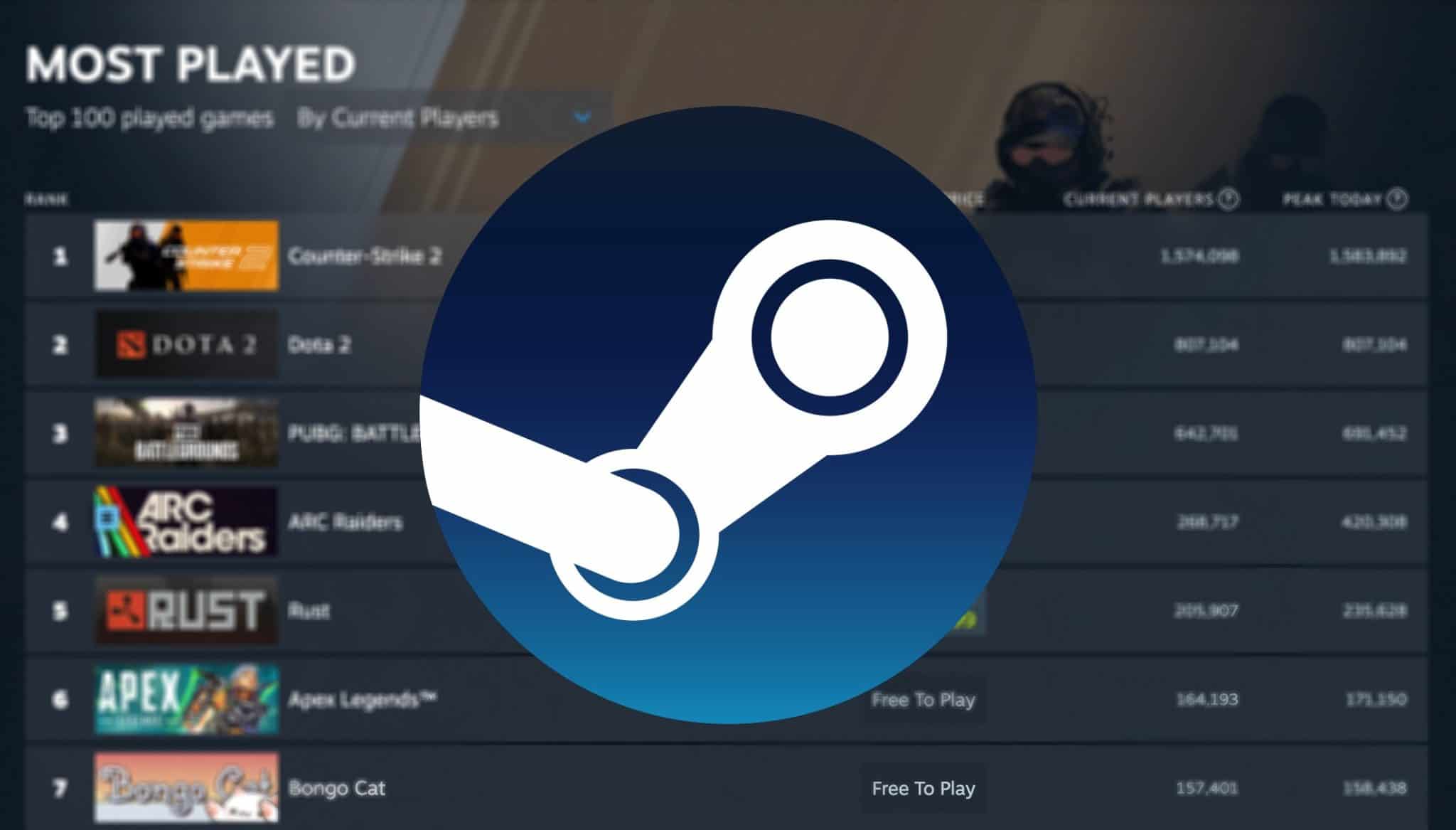
Can You Play Steam Games On Your Phone 2026 Beem Steam Games.webp. The Most Played Games On Steam For 2026 So Far Cheat Code Central Most Played Games Steam 2026 2048x1167 . Free Open World Steam Games Worth Exploring 2026 Edition Image. Steam Starts 2026 With 4 New FREE Games No Strings Attached Steam Logo In Forest . Steam 2026 4 New Free To Play Games Available Now AllKeyShop Com Showcase Steam Free Games 2026 Indie F2p Card Roguelike Sci Fi
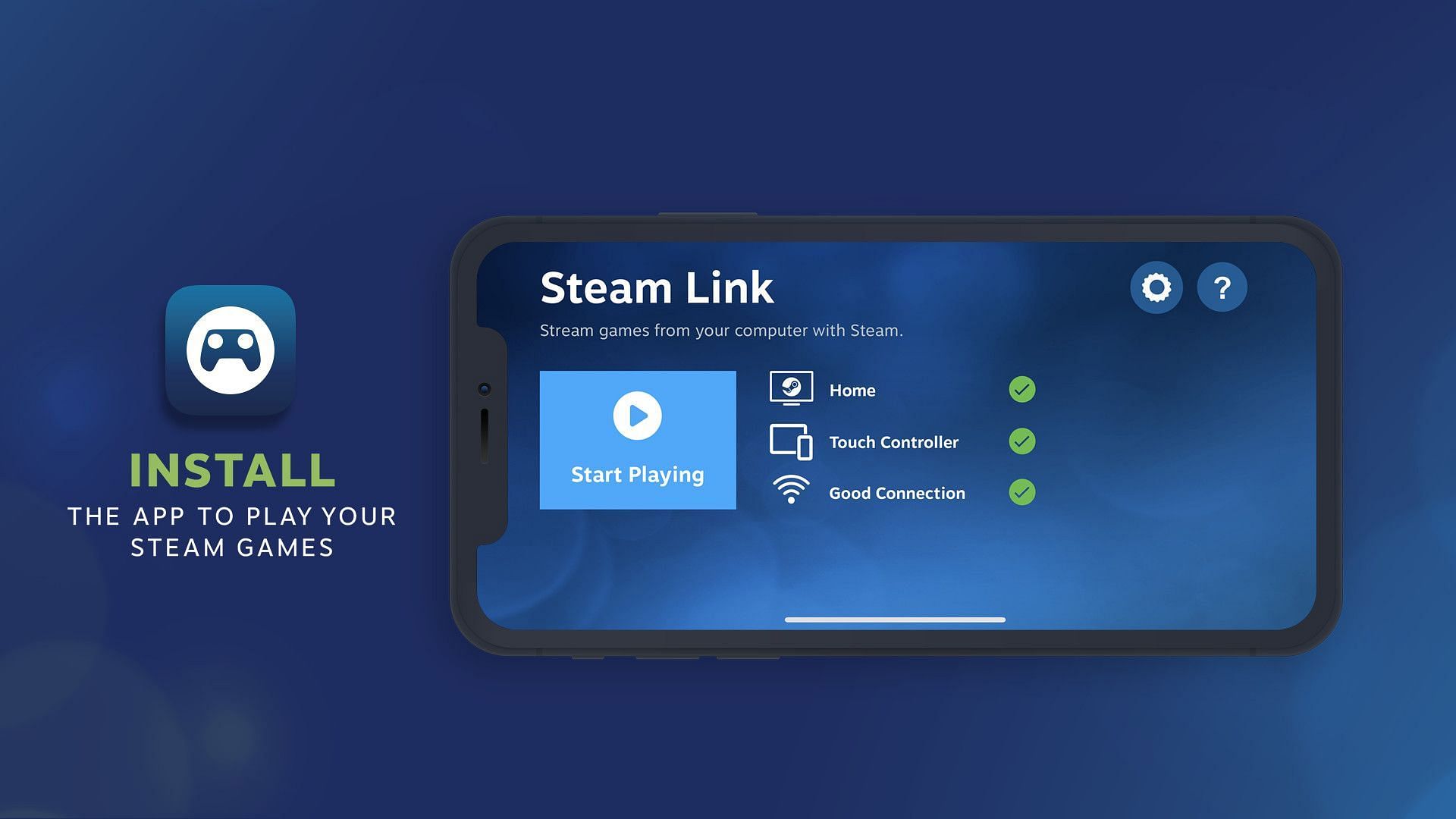



How To Use Steam Link To Play Games On Your Smartphone Cc606 1920 . How To Play Steam Games On A Phone Steam Link More V4 460px Play Steam Games On Phone Step 8 . How To Play Steam Games On A Phone Steam Link More V4 460px Play Steam Games On Phone Step 10 . 2026 Officially Got Its First Must Play Steam Game Nioh 3 Screenshot . Best Steam Horror Games To Play 2026 Edition LRDev Games 1.Best RPG Games On Steam Complete Guide.webp


2026 Officially Gets Its First Must Play Steam Game Steam Mewgenics Gamerant Feature . Play ALL Steam Games On Your Phone Steam Link App YouTube . How To Play Steam Games On A Phone Steam Link More V4 460px Play Steam Games On Phone Step 1 . Steam Launches 2026 By Giving Players Four Free Games August 5 2021 Brazil. In This Photo The Steam. 10 Game Free To Play Terbaik Di Steam March 2026 Gaming Net Free Steam Game Feb 2026


My Current Steam Wishlist 2025 2026 New Games YouTube . How To Play Steam Games On A Phone Steam Link More V4 460px Play Steam Games On Phone Step 3 . Free Steam Games 2026 Steambase Public. How To Play Steam Games On Android Phone . Best Free Games To Claim Right Now 2026 Steam PlayStation Xbox More May 2026 Free Games Feature Image

10 FREE Open World Steam PS5 Games Coming In 2026 GROMO Facebook Media. 2026 Officially Gets Its First Must Play Steam Game All Eyes Are On Ashes Of Creation . Free Indie Steam Games You Should Play In 2026 Image. Free Open World Steam Games Worth Exploring 2026 Edition Image. Free Open World Steam Games Worth Exploring 2026 Edition Image

2026 Officially Gets Its First Must Play Steam Game Image 2 . How To Play Steam Games On A Phone Steam Link More V4 460px Play Steam Games On Phone Step 2 . How To Play Steam Games On Android Phone . 2026 Officially Gets Its First Must Play Steam Game Mewgenics Press Image 3 . How To Play Steam Games On A Phone Best Selling Most Played Steam Games Game Rant 1


How To Play Steam Games On A Phone Steam Link More V4 460px Play Steam Games On Phone Step 12 . 2026 Officially Gets Its First Must Play Steam Game Mewgenics Press Image 5 . Gaming Anywhere How Do Steam And Android Connect Steam Machine 2026 Image 01 . Steam 2026 4 New Free To Play Games Available Now AllKeyShop Com Featured Steam Free Games 2026 Indie F2p Card Roguelike Sci Fi. 2026 Officially Gets Its First Must Play Steam Game Mewgenics Press Image 4